All Posts

Week 9: Eye Protection

Concept:

I often use my phone late in the night with my light out and this has been messing up my eyesight for this Project I decided to create a form of eye protection warning system that alerts the user with the use of an LED when the light from their phone screen or laptop is too bright.

So when the screen brightness is low the LED remains off and as the user increases the brightness the LED gets brighter. When the screen brightness reaches a level where the user’s eye is at harm the LED starts to blink and when the brightness gets too high the LED blinks faster.

Code:

int warning=0;//variable to store the warning value used to control blinking and led brightness

void setup() {
  // put your setup code here, to run once:
  pinMode(13,OUTPUT);//set the 13 pin to output type
  pinMode(8,INPUT);//set pin 8 to input type
  pinMode(6,OUTPUT);//set pin 6 to output type
  Serial.begin(9600);//set serial screen for viewing values
}

void loop() {
  // put your main code here, to run repeatedly:
  int anasens=analogRead(A2);//read info from light sensor and store in anasens
  
  int digsens=digitalRead(8);//read info from switch sensor and store digsens
  Serial.println(anasens);//print anasens on serial board
  anasens=constrain(anasens,100,680);//keep the values between 100 and 680 at all times
  warning=map(anasens,100,680,0,255);//rescale the values from 100 and 680 to 0 and 255
  
  if(digsens==1){//if the switch is pressed 
    digitalWrite(13,1);//turn on yellow LED
  }
  else{//if the switch is not pressed
    digitalWrite(13,0);//turn off LED
  }
  if(warning>200){//if the warning is greater than 200
    analogWrite(6,warning);//turn on red LED based on warning value
    delay(100);//wait for 100 milliseconds
    analogWrite(6,0);//turn off red LED
    delay(100);//wait for 100 milliseconds
  }
  if(warning>100&&warning<200){//the value is between 100 and 200
    analogWrite(6,warning);//turn on red LED based on warning value
    delay(500);//wait for 500 milliseconds
    analogWrite(6,0);//turn off red LED
    delay(500);//wait for 500 milliseconds
  }
  analogWrite(6,warning);//turn on red LED based on warning value
}

Highlight:

This was an interesting assignment. I am happy I was able to do it. What i look forward to is making this a wireless connection as connecting the wires was stressful

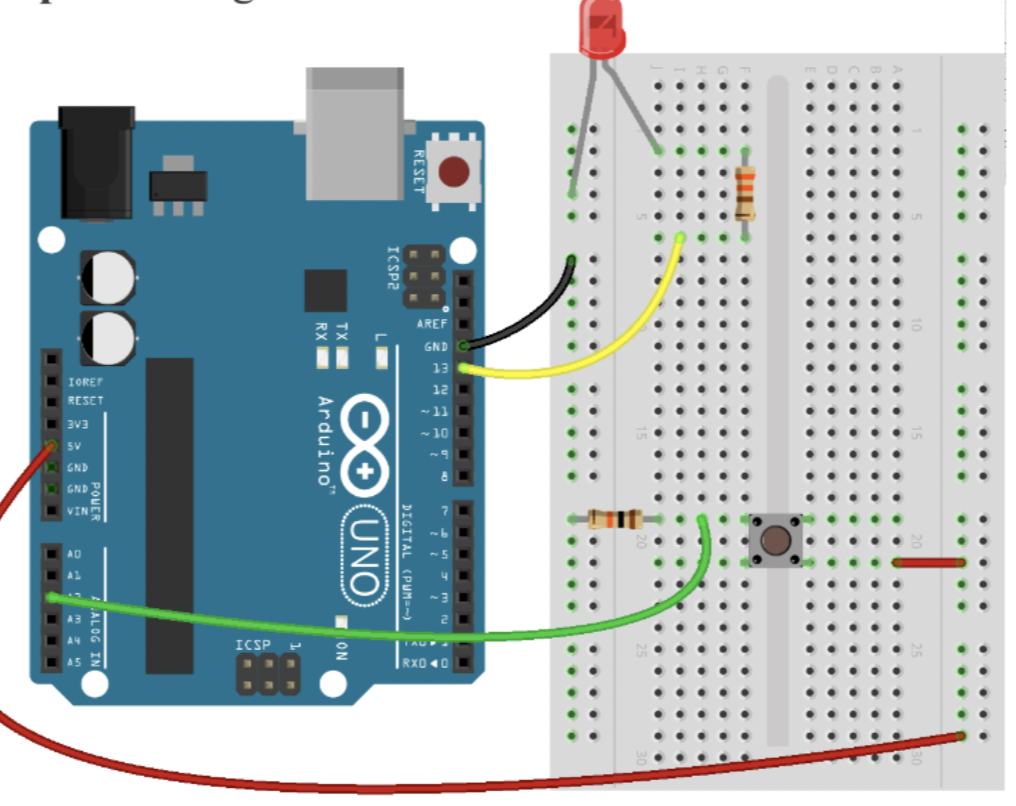
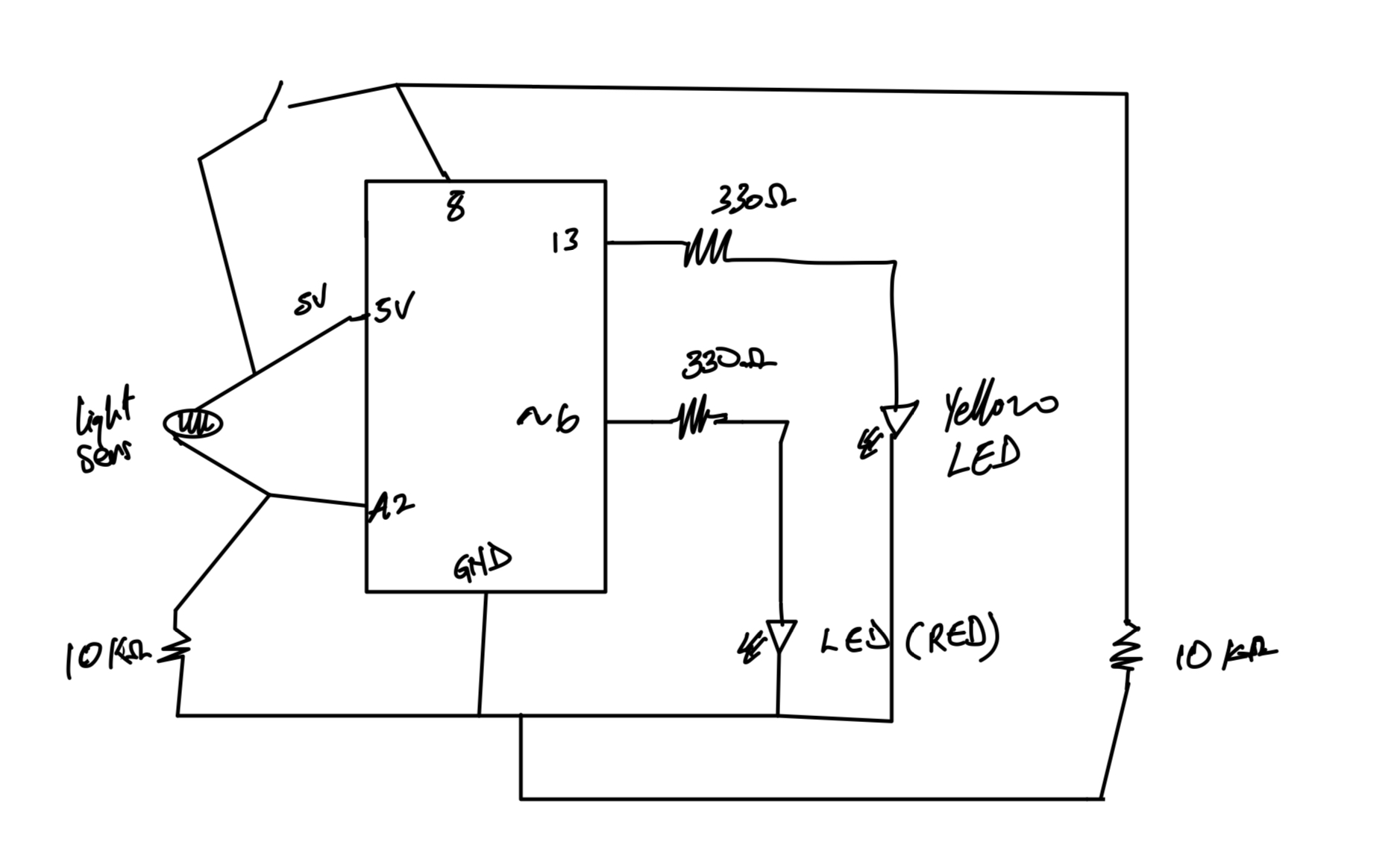
Circuit Diagram:
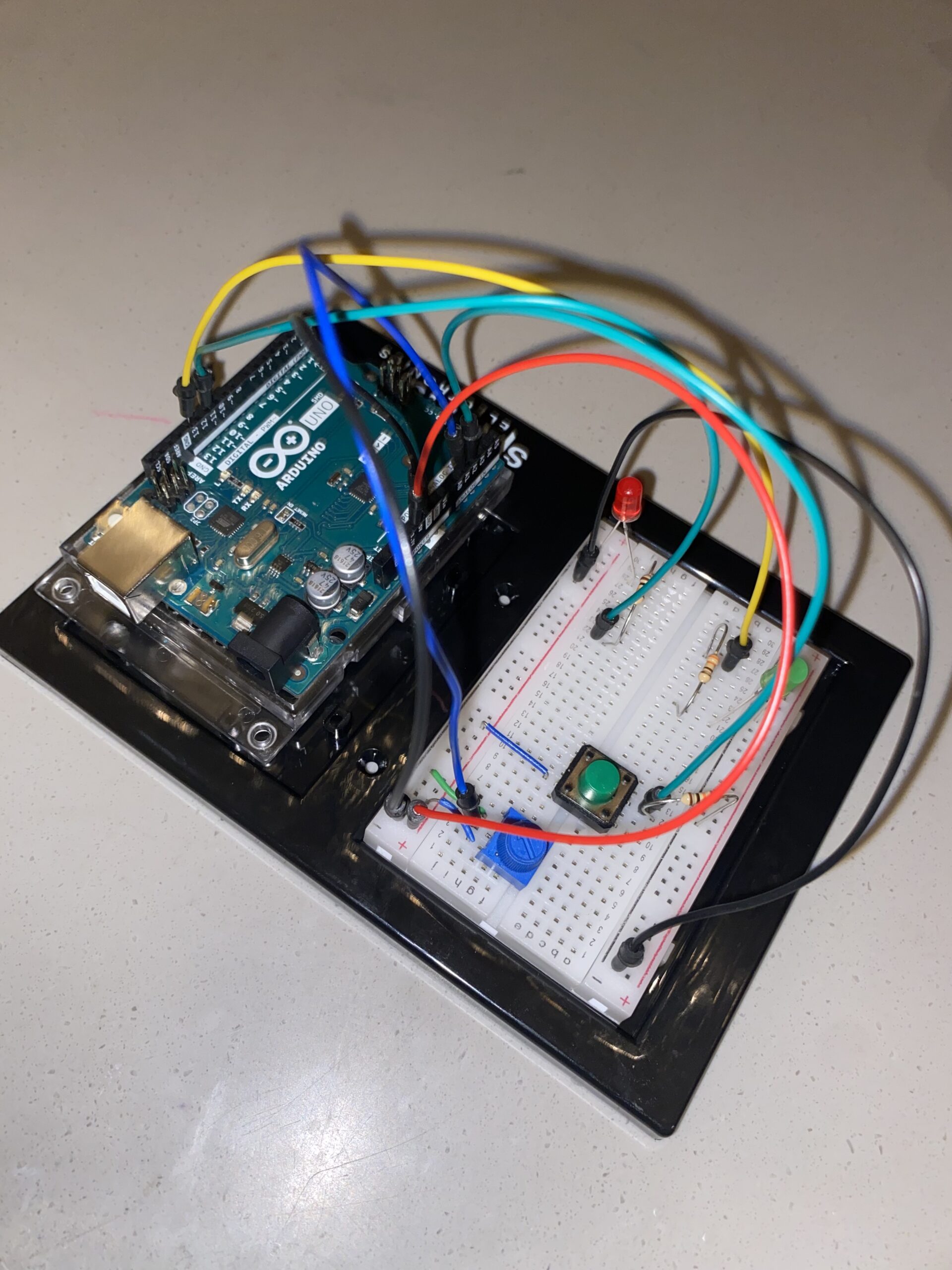
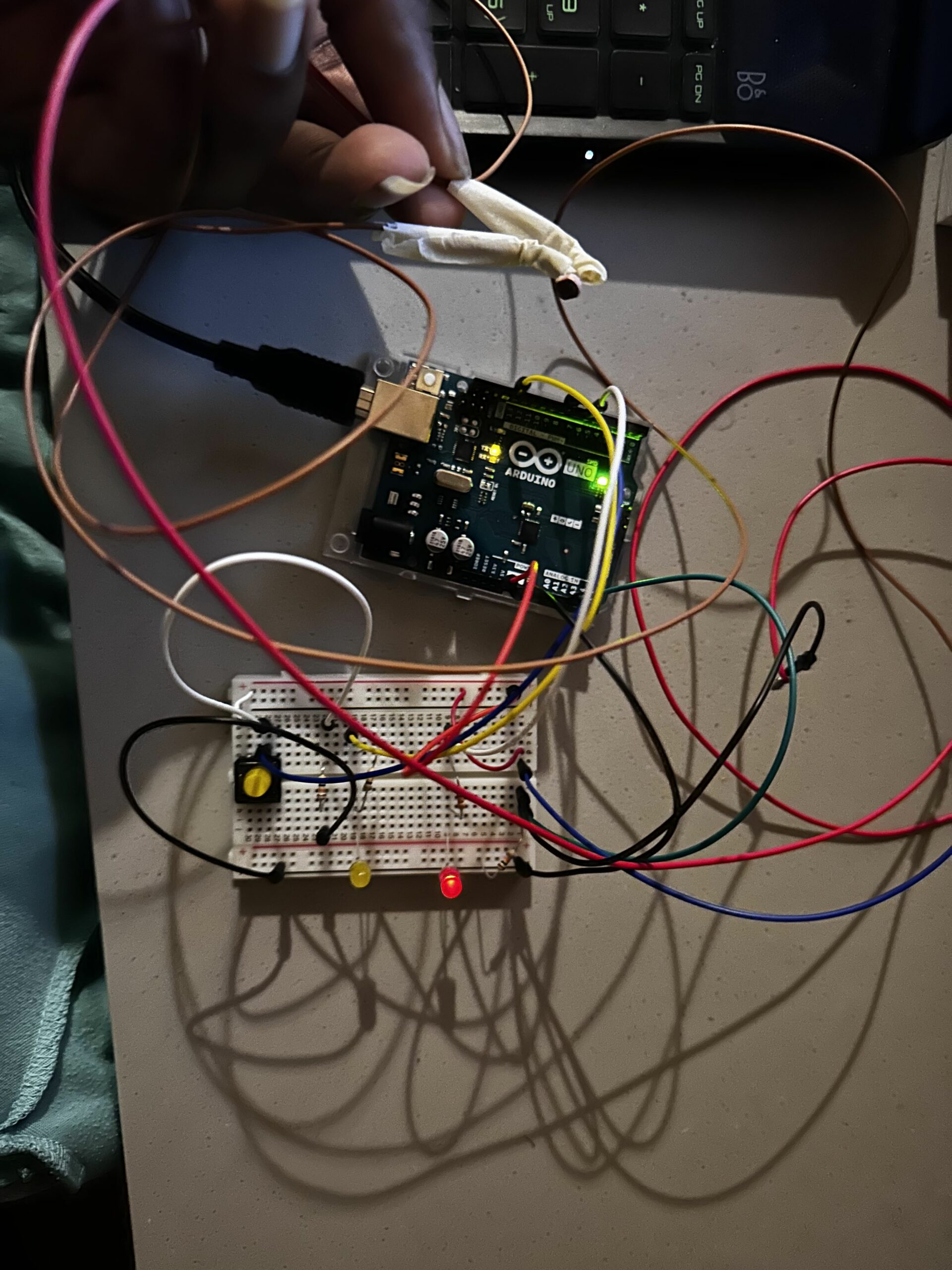
Set-Up Picture:
Video:

https://drive.google.com/drive/folders/17efBVjbUX72MkYQmuw92EqgqJVYxm1Oi?usp=sharing


Thank You!.
Week 10 – Response

The Future of Interaction Design  and Responses: A Brief Rant on the Future of Interaction Design:

The rant is about a problem in interaction designs now. They are not tangible interfaces, dynamic materials, and/or haptic. Human Capabilities were the main concern of the author. I think humans’ capabilities are daffier. As much as it was an interesting read as much as it is not inclusive. There are a lot of responsibilities and an interactive designer needs to keep in mind in terms of inclusivity. I think accessibility is a big concern. I agree that capabilities like our hands and fingers can do a lot of things and influence our futures and how they are incredible but this also made me think of those who do not have them. What should an interaction designer do? How can we help? How should we compensate?  I do not know the answer, but I hope one day I will.

I like the part when he/she started to talk about choices, and we chose what to do and how to interact. I agree and I think as interactive designers we should choose to have a responsibility to make our designs inclusive as much as we can.

I think there is a lot to be done in research regarding tangible interfaces, dynamic materials, and haptic because they are somehow inadequate. Thus, I wonder what would be a dynamic medium for keyboards.

Even though he is trying to challenge us to create designs that take advantage of our capabilities I think there should be a balance between that and the idea that capabilities might not always be equal.


Week9: Mini DJ Player

My Arduino code simulates a mini DJ player by incorporating a potentiometer and a switch. The potentiometer, connected to analog input pin A1, emulates a DJ slider or knob, allowing you to control the brightness of an LED connected to PWM pin 11. This provides a visual representation of adjustments such as volume or fading effects.

Meanwhile, the switch, connected to digital input pin A2, mimics a button on the DJ player. When the button is pressed, a yellow light connected to pin 13 is activated briefly, creating a visual cue for a button press or an effect. The code establishes a loop that continuously reads the analog sensor value, and button state, and adjusts LED brightness accordingly, producing a dynamic and interactive simulation of a basic DJ player interface.

It does not look like DJ player in the bright light, and it was hard for me to take a video with one hand and simultaneously press the button with another hand.

int led = 11; //the PMW pin the LED is attached to

void setup(){
  Serial.begin(9600);
  //declare pin 11 to be output:
  pinMode(led,OUTPUT);
  pinMode(13, OUTPUT); //yellow light
  pinMode(A2, INPUT); //button
}
  // put your setup code here, to run once:


void loop() {
  // put your main code here, to run repeatedly:
  int sensorValue = analogRead(A1);
  //Serial.println(sensorValue);

  int buttonState = digitalRead(A2); //button

  Serial.println(buttonState);
  if (buttonState == 1) {
    digitalWrite(13, HIGH);
    delay(100);

  } else {
    digitalWrite(13, LOW);
    //delay(300);
  }


  //set the brightness of pin 11 according to the sensor value/4)
  analogWrite(led, sensorValue/4);

  //wait for 30 milliseconds to see the diming effect
  delay(30);
}

One particularly interesting aspect of the code is the use of the analog input from a potentiometer to control the brightness of an LED. The line int sensorValue = analogRead(A1); reads the analog input from pin A1, representing a DJ slider or knob. The subsequent analogWrite(led, sensorValue/4); adjusts the brightness of an LED on pin 11 based on this input, creating a dynamic and interactive simulation of volume or fade control. This part of the code adds a tangible and intuitive user interface element to the mini DJ player simulation.

(I also refer to the slides from Professor!)

Week 9 – Reading Response

Greatest Hits (and Misses)
The reading went over how different materials were used in different projects. I think there is 2 ways of approaching a project: come up with the idea first and look at available technologies or methods, or look at available technologies or methods and think about what you can do with it.

I wouldn’t say any of them is superior than the other. However, I do want to say that it does mean knowing what’s available will be helpful in terms of thinking outside the box, doing remix, and creating your project.  In this sense, it was interesting to see how different technologies were used. Some were crazier than others, but regardless, they still make it to my reference list.

Making Interactive Art
I think the reading very well points out how certain performers or artists tend to directly guide the audience to think a specific way or come to a specific conclusion. I think it’s easier to fall into this pitfall as an interactive media creator, as there’s a limitation to different types or cases of interactions we can think of as creators, which will make us limit the conclusion and the emotions we create with our project.

I think this can both work against you or work in your favour. It is true we, as creators, should try not to have a set conclusion and just ‘educate’ our audience of it. However, at the same time, interactive media holds the power to guide people to experience certain things and, in return, think a certain thing. I think this is a strength not many forms of media has. For instance, a painting may go through so many interpretations of different individuals. While I agree the charm lies within this characteristic, it is also very true that the painter may fail in delivering the message with the correct context and depth.

Week 9- Reading Response

In his blog posts, Tom Igoe analyzes the importance of innovative thinking for those who work on physical computing projects and considers the performative dimension of digital products and creative artworks. What strikes me about his approach is that Igoe encourages students to stop thinking of specific ideas as not original and consider how to create variations of them instead. While dance floor pads, electronic instruments controlled by players’ gestures, and touch kiosks may seem overused, such projects bring about a wealth of learning opportunities. Interactive art projects enable creators to engage their audience and discover new interpretations.

Instead of scripting users’ actions, creators should prioritize giving them the freedom to express themselves through works of art. I find this strategy especially useful for product developers, artists, and creative professionals looking for ways to grab the interest of their audience. As it is impossible to predict how a target user may react to an end product without conducting thorough research, we can test out physical computing and creative art projects in real time to get feedback. I think that by analyzing users’ and viewers’ reactions, web developers and artists can increase the value of their projects.

Week 9 – Production

Concept)

When I thought about what I could do with 2 LEDs, I again thought about the colours. Looking at buttons and red and blue LED lights, I thought of an old-style game that used to be played on primary school sports day: “Blue Flag, Red Flag.”

How you play the game:
There’s one referee who gives orders like…
– Hold up red flag
– Don’t hold up red flag and hold up blue flag
– etc..
It makes much more sense and has more thrill in Korean grammar.. The grammatical order of English kind of giving everything away.

Anyways, I wanted to create a game control for this game.

Materials I Used:
– Arduino Uno
– 2 LEDs (red & blue)
– 4  resistors (330 ohm)
– 2 push button switches
– breadboard
– jumper wires

Video: (just realized the top part is a little cut off, but the subtitles on top of the video or examples of the orders)

Code:

const int redButton = 3;
const int blueButton = A1;
const int redLight = 6;
const int blueLight = 5;

void setup() {
  Serial.begin(9600);
  pinMode(redLight, OUTPUT);
  pinMode(blueLight, OUTPUT);
  pinMode(redButton, INPUT);
}

void loop() {

  int redState;
  int blueState;

  redState = digitalRead(redButton);
  blueState = analogRead(blueButton);

  //Serial.print("restate: ");
  //Serial.println(redState);
  //Serial.print("bluestate: ");
  //Serial.println(blueState);
  if (redState != 0)
  {
    Serial.println("red high");
    digitalWrite(redLight, HIGH);
    delay(100);
    digitalWrite(redLight, LOW);
  }
  if (blueState > 500)
  {
    Serial.println("blue high");
    digitalWrite(blueLight, HIGH);
   delay(100);
    digitalWrite(blueLight, LOW);
  }
}


The code is very simple as it’s just recognizing the buttons and turning on the LED lights. It is notable that the push of the buttons are recognized differently (analog and digital input) and therefore the if statement is a little different.


Feeling Snackish

This week’s assignment drew inspiration from a familiar scenario: those late-night kitchen escapades for sneaky snacks. At home, the kitchen lights, being downlighters, don’t just instantly switch on. Instead, there’s a gradual shift when we turn the knob. This unique characteristic prompted me to recreate this experience in my circuit. The analog representation was brought to life through the potentiometer, mirroring the gradual adjustment of the kitchen lights, while the digital side found expression in the toggle switch.

To bring my circuit to life, I gathered a few key components: a potentiometer, a toggle switch, jumper cables, two 10k ohm resistors, one 330-ohm resistor, and two LEDs. The interplay of these elements resulted in the creation of a circuit, visually captured in the image below.

In the process of setting up the circuit, I encountered challenges associated with ensuring the correct placement of components, whether they operated in the digital or analog realm. Despite these hurdles, I noticed a significant improvement in my ability to assemble the circuit compared to my initial attempts. This project underscored the importance of understanding the specific pins corresponding to digital and analog features on the Arduino Uno board. Aligning the code with the appropriate pin modes became crucial for a seamless execution.

Here’s a snippet of the code that brought my project to life:

void loop() {
  int sensorValue= analogRead(A1);
  int buttonState = digitalRead(A2);
  Serial.println(sensorValue);


 analogWrite(led, sensorValue/4);

 delay(30);

 if (buttonState == LOW) {

digitalWrite(13, LOW);

} else {

digitalWrite(13, HIGH);

}
}

Below is the video representation of my assignment.

IMG_4150

Reflecting on the project, I recognize its conceptual completeness, yet I aspire to enhance its creative aspect. While the current iteration captures the assignment’s essence, I envision experimenting with diverse LED blinking patterns, moving beyond the conventional blink. Additionally, exploring the possibility of using the potentiometer to control multiple LEDs could add a layer of complexity and creativity to the project, elevating it beyond its current simplicity.

Luminar: Arduino-LDR LED System

Concept
In the realm of electronics, my pursuit led me to create an LDR-controlled LED system using Arduino. The concept is rooted in a personal connection—recalling my younger self’s dependence on a night light for a good night’s sleep. This assignment aims to offer a modern solution by integrating an LDR-controlled LED system, bridging the gap between past comforts and present technology.

Required Hardware
• Arduino UNO
• Light sensor
• LED’s
• Resistor (330 ohms)
• Jumper wires
• Breadboard
• USB cable
• Computer with Arduino IDE installed

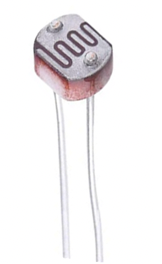
Light Sensor  

Circuit Diagram
The circuit diagram was created using Tinker CAD and includes the Light sensor, LED’s, resistor, Arduino UNO, and breadboard.

Setting Up the Components

The first step was assembling the components. The LDR was connected to the analog pin A0 on the Arduino, and a resistor was added to create a voltage divider for accurate readings. One LED was directly connected to pin 7, while the second LED was attached to pin 8 through a push button.

Coding the Logic

The Arduino code was crafted to read the analog value from the LDR and determine whether the ambient light was above or below a predefined threshold. If the light level fell below the threshold, both LEDs would illuminate, creating an aesthetically pleasing effect.

int ldrPin = A0;
int led1 = 7;
int led2 = 8;  // New LED pin
int threshold = 70;

void setup()
{
  Serial.begin(9600);
  pinMode(led1, OUTPUT);
  pinMode(led2, OUTPUT);  // Set the new LED pin as OUTPUT
}

void loop()
{
  int data = analogRead(ldrPin);
  Serial.println("");
  Serial.print("Light Sensor ");
  Serial.print("Value = ");
  Serial.print(data);

  if (data <= threshold)
  {
    digitalWrite(led1, HIGH);
    digitalWrite(led2, HIGH);  // Turn on the second LED
  }
  else
  {
    digitalWrite(led1, LOW);
    digitalWrite(led2, LOW);  // Turn off the second LED
  }
}

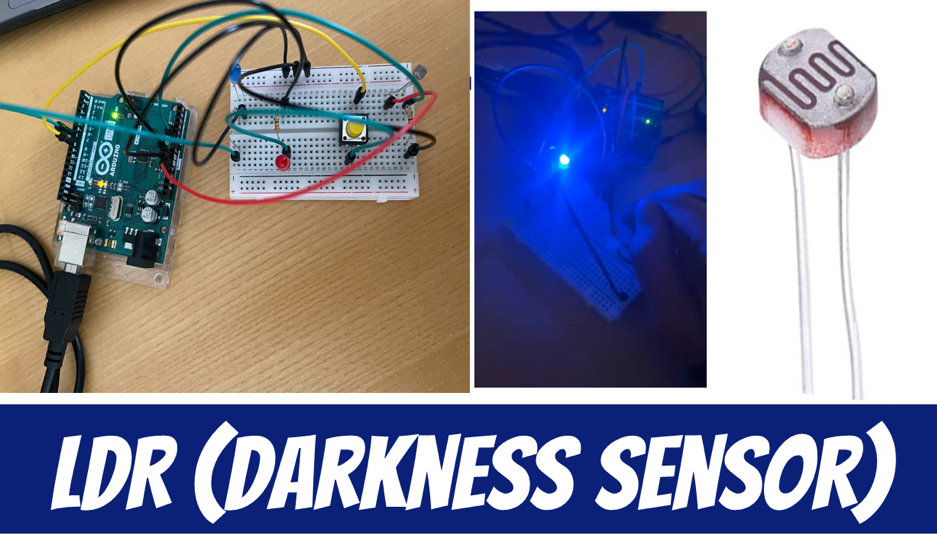
Hardware Implementation

Video Illustration

https://youtu.be/EFwwim9_fBc

Working Explanation and Conclusion:

Experimenting using electronics enables the combination of technology and creativity. With this assignment, I investigated the dynamic control of two LEDs using an Arduino, an LDR, and a button. This is an example of the limitless possibilities that exist when imagination and technology are combined, whether it is used as an instructional tool or as a decorative lighting solution. Also, it can be used as a dark sensor if anyone want to sleep in a very light like small bulb.

Week 9 – Reading Response(s)

Making Interactive Art: Set the Stage, Then Shut Up and Listen

In this class, it’s easy to present our artworks as static pieces with instructions for the participants and a statement of how we want them to interpret it. The author of this piece, however, believes that this defeats the purpose of interactive art. He wants interactive artists to think of their artwork as a performance rather than a painting; you don’t go about narrating the plot to the audience in a performance – you let the audience perceive the performance through their own senses and interpretation. In the same way, we shouldn’t present our interactive artworks on a canvas with instructions and interpretations – we give them the basic context so they know what they’re getting into, and then we let them explore for themselves. We have to trust our audience to discover their interpretation through a ‘conversation’ with our artwork with merely a suggestion of what their course of action should be – unaided by our own directives – because only in this way can we offer an authentic emotional experience to our audience.


Physical Computing’s Biggest Hits (and misses)

This one was just a list of some of the most common project themes in interactive artwork projects. It’s funny because a lot of us will be revisiting these themes many times ourselves for our own artworks, but I don’t think there’s something deeply wrong with that. I think finding our own twist on things that have widely been done before is still our own thing. After all, it is easy to feel like everything worth doing has already been done. Not that that’s true, but I think we may just come closer to originality by stumbling upon an idea no one’s heard of before while first doing stuff that has been done, countless times over.