All Posts

Alien Intelligence w/Professor Leach

Attending professor’s Leach conference about his opinion about AI is certainly an interesting experience. He mostly spoke about how AI is this extremely smart web that connects all human minds and thoughts into one place, making it smarter than 5 people combined. Professor Leach praises the concept that AI is an extremely helpful tool that is open to all. 

My thoughts were mostly concerned with ethics. Should we as a community come up with regulations and a set of requirements to not make others use AI for their advantage. As an artist who mostly uses digital art (tablet and pen) I think people need to realize how harmful it is to use AI tools without proper manners. In the end AI is made from people’s thoughts and work, if people get used to “creating” art whether it be a drawn piece or a song I personally would consider it theft. Because it uses copies of other artists to replicate what a person wants. It might be fine to have it for personal use, however publicly claiming their own hard work is a little shameful. 

I really think regulations should be set for AI, and people should be mindful of the type of work they do.

Week 11: Final Project Ideas

I haven’t selected a particular idea yet, but I have decided what I want to integrate into the project. Here are the ideas that I will be incorporating:

Interesting Input Design:

I want my project to have an interesting interaction interface for the user. Because of this, I want to limit the use of sensors to take input, and instead use a different approach. One idea that I had was to give the user the access to a bare breadboard. This breadboard wouldn’t be the main one that houses the circuitry for the project, but another one whose purpose is to act as input. This breadboard would be paired with wires, or some other type of plug that completes a circuit and thus provides some information as input.

Another type of input I thought of relates back to one of my earlier Arduino projects, which is to use some water as a conductive interface. I could have a few wooden floats that send a signal to the Arduino if put in the containers. The combinations of different floats in different containers serve as input to the project.


WEEK 11 EXERCISES W/PIERRE

Exercise 1

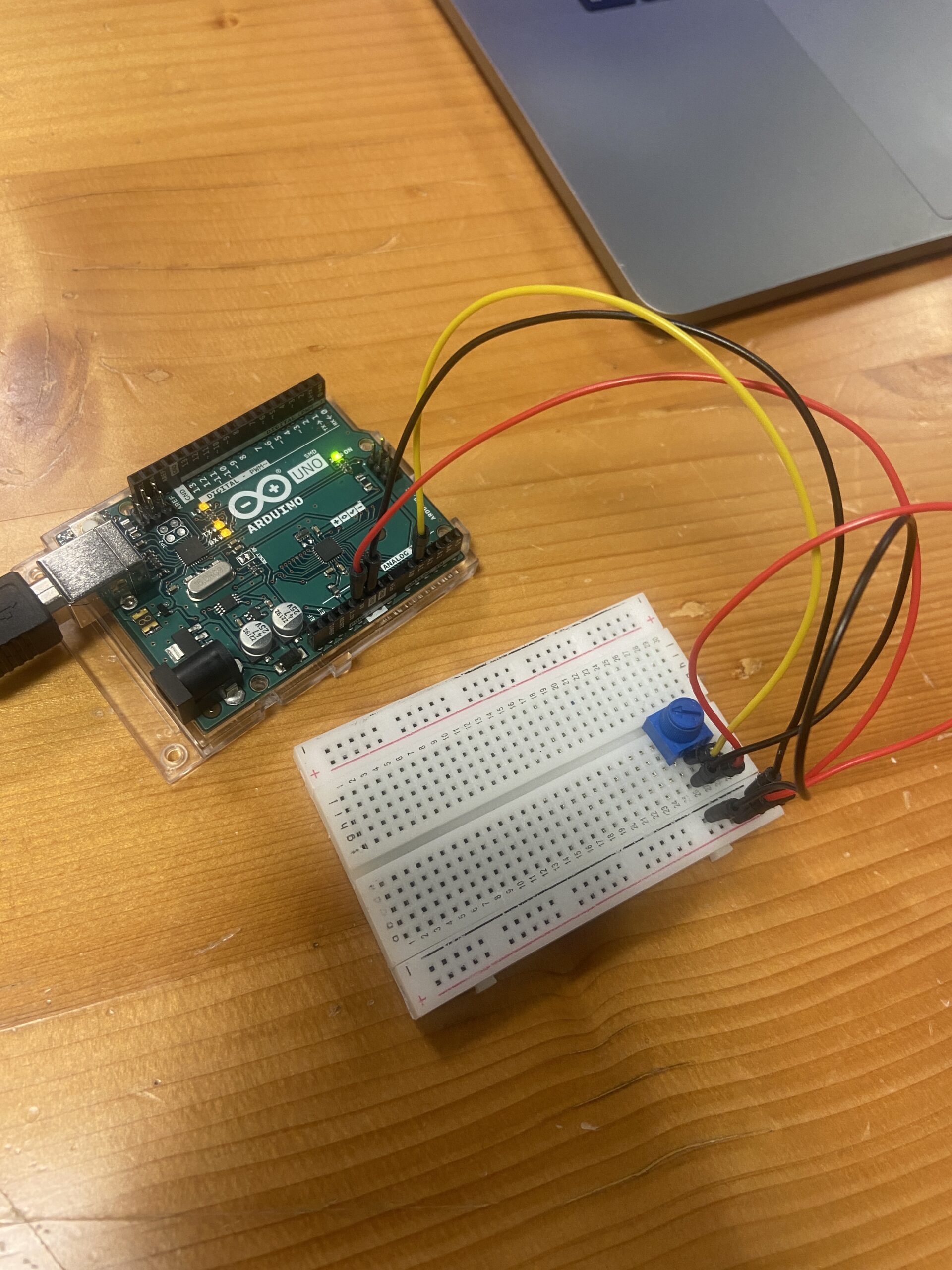
IMG_7102

let rVal = 0;
let potentiometerInput = 0;
let circleX;


function setup() {
  createCanvas(640, 480);
  textSize(18);
  circleX = width/2;
}

function draw() {
  // one value from Arduino controls the background's red color
  background(255);

  // the other value controls the text's transparency value

  if (!serialActive) {
    text("Press Space Bar to select Serial Port", 20, 30);
  } else {
    text("Connected", 20, 30);
    

    // Print the current values
    text('potentiometerInput = ' + str(potentiometerInput), 20, 70);

  }
  
  //Draws the circle 
  circle(circleX,height/2,100);
}

function keyPressed() {
  if (key == " ") {
    // important to have in order to start the serial connection!!
    setUpSerial();
  }
}

// This function will be called by the web-serial library
// with each new line of data. The serial library reads
// the data until the newline and then gives it to us through
// this callback function
function readSerial(data) {
  ////////////////////////////////////
  //READ FROM ARDUINO HERE
  ////////////////////////////////////

  if (data != null) {
    // make sure there is actually a message
    // split the message
    let fromArduino = split(trim(data), ",");

    // if the right length, then proceed
    if (fromArduino.length == 1) {
      // only store values here
      // do everything with those values in the main draw loop
      
      // We take the string we get from Arduino and explicitly
      // convert it to a number by using int()
      // e.g. "103" becomes 103
      
      
      potentiometerInput = int(fromArduino[0]);
      
      //Maps the potentiometer input value to the width of the canvas.
      circleX = map(potentiometerInput,0,1023,0,width);


    }
    let sendToArduino = "\n";
    writeSerial(sendToArduino);
    
  }
}

P5 ⬆️

void setup() {

  Serial.begin(9600);

  // start the handshake
  while (Serial.available() <= 0) {
    digitalWrite(LED_BUILTIN, HIGH); // on/blink while waiting for serial data
    Serial.println("0,0"); // send a starting message
    delay(300);            // wait 1/3 second
    digitalWrite(LED_BUILTIN, LOW);
    delay(50);
  }
}

void loop() {
  // wait for data from p5 before doing something
  while (Serial.available()) {
    digitalWrite(LED_BUILTIN, HIGH); // led on while receiving data
      
      delay(5);
       if (Serial.read() == '\n') {
      int potentiometer = analogRead(A1);
      delay(5);
      Serial.println(potentiometer);
      Serial.print(',');
      Serial.println(potentiometer);
       }
    }
      digitalWrite(LED_BUILTIN, LOW);
  }

Arduino ⬆️

Exercise 2

 ASSIGNMENT 2

while (Serial.available()) {
    Serial.println("0,0");
    digitalWrite(LED_BUILTIN, HIGH); // led on while receiving data
    int value = Serial.parseInt();
    int value2 = Serial.parseInt();
    if (Serial.read() == '\n') {
      analogWrite(ledPin, value);
      analogWrite(ledPin2, value2);
    }
  }

Arduino ⬆️

function readSerial(data) {
  if (data != null) {
    //////////////////////////////////
  //SEND TO ARDUINO HERE (handshake)
  //////////////////////////////////
  value = int(map(mouseY,0, height, 0, 255));
  value2 = int(map(mouseX,0, width, 0, 255));
  let led1 = value + "\n";
  let led2 = value2 + "\n";
  writeSerial(led1);
  writeSerial(led22);
  print(value);
  print(value2)
    
    
  }

p5 ⬆️

ASSIGNMENT 3

void loop() {
  // wait for data from p5 before doing something
  while (Serial.available()) {
    // led on while receiving data
    digitalWrite(LED_BUILTIN, HIGH); 
    // gets value from p5
    int value = Serial.parseInt();
    // led switch from p5 value input
    if (Serial.read() == '\n') {
      if (value == 1) {
        digitalWrite(ledPin, HIGH);
      }
      else {
        digitalWrite(ledPin, LOW);
      }
      
      // gets sensor value
      int sensor = analogRead(A0);
      delay(5);
      // sends sensor value to p5
      Serial.println(sensor);
    }
  }
  digitalWrite(LED_BUILTIN, LOW);
  
}

Arduino ⬆️


W11 assignments

Assignments

Assignment 1:

P5 Code snippet:

function readSerial(data) {
  ////////////////////////////////////
  //READ FROM ARDUINO HERE
  ////////////////////////////////////

  if (data != null) {
    // make sure there is actually a message
    // split the message
    let fromArduino = split(trim(data), ",");

    // if the right length, then proceed
    if (fromArduino.length == 1) {
      // only store values here
      // do everything with those values in the main draw loop
      
      // We take the string we get from Arduino and explicitly
      // convert it to a number by using int()
      // e.g. "103" becomes 103
      
      
      potentiometerInput = int(fromArduino[0]);
      
      //Maps the potentiometer input value to the width of the canvas.
      circleX = map(potentiometerInput,0,1023,0,width);


    }
    let sendToArduino = "\n";
    writeSerial(sendToArduino);
    
  }
}

Arduino code snippet:

void setup() {

  Serial.begin(9600);

  // start the handshake
  while (Serial.available() <= 0) {
    digitalWrite(LED_BUILTIN, HIGH); // on/blink while waiting for serial data
    Serial.println("0,0"); // send a starting message
    delay(300);            // wait 1/3 second
    digitalWrite(LED_BUILTIN, LOW);
    delay(50);
  }
}

void loop() {
  // wait for data from p5 before doing something
  while (Serial.available()) {
    digitalWrite(LED_BUILTIN, HIGH); // led on while receiving data
      
      delay(5);
       if (Serial.read() == '\n') {
      int potentiometer = analogRead(A1);
      delay(5);
      Serial.println(potentiometer);
      Serial.print(',');
      Serial.println(potentiometer);
       }
    }
      digitalWrite(LED_BUILTIN, LOW);
  }


Assignment 2: Video2

Code snippet Arduino:

while (Serial.available()) {
    Serial.println("0,0");
    digitalWrite(LED_BUILTIN, HIGH); // led on while receiving data

    int value = Serial.parseInt();
    int value2 = Serial.parseInt();

    if (Serial.read() == '\n') {
      analogWrite(ledPin, value);
      analogWrite(ledPin2, value2);
    }
  }

p5 snippet:

function readSerial(data) {
  if (data != null) {
    //////////////////////////////////
  //SEND TO ARDUINO HERE (handshake)
  //////////////////////////////////
  value = int(map(mouseY,0, height, 0, 255));
  value2 = int(map(mouseX,0, width, 0, 255));
  let led1 = value + "\n";
  let led2 = value2 + "\n";
  writeSerial(led1);
  writeSerial(led22);
  print(value);
  print(value2)
    
    
  }

Assignment 3: video3

Arduino snippet:

void loop() {

  // wait for data from p5 before doing something
  while (Serial.available()) {

    // led on while receiving data
    digitalWrite(LED_BUILTIN, HIGH); 

    // gets value from p5
    int value = Serial.parseInt();

    // led switch from p5 value input
    if (Serial.read() == '\n') {
      if (value == 1) {
        digitalWrite(ledPin, HIGH);
      }
      else {
        digitalWrite(ledPin, LOW);
      }
      
      // gets sensor value
      int sensor = analogRead(A0);
      delay(5);

      // sends sensor value to p5
      Serial.println(sensor);
    }
  }

  digitalWrite(LED_BUILTIN, LOW);
  
}


Homework – In class Assignments

Example 1:

// Map the sensor value to the width of the canvas
  ellipseX = map(latestData, 0, 1023, 0, width);

  // Draw the ellipse at the mapped position
  ellipse(ellipseX, height/2, 50, 50);

Example 2:

I simply map the mouseX coordinate to the light’s brightness!

if (mouseIsPressed) {
light=map(mouseX,0,width,0,1023);
}


Example 3:

let velocity;
let gravity;
let position;
let old_position;
let acceleration;
let wind;
let wind_arduino=0;
let drag = 0.99;
let mass = 50;
let light =0;

function setup() {
  createCanvas(640, 360);
  noFill();
  position = createVector(width/2, 0);
  velocity = createVector(0,0);
  acceleration = createVector(0,0);
  gravity = createVector(0, 0.1*mass);
  wind = createVector(0,0);
  noLoop();
}

function draw() {
  background(255);
  
  if(wind_arduino<512)
    wind.x=-1;
  else
    wind.x=1;
  applyForce(wind);
  applyForce(gravity);
  velocity.add(acceleration);
  velocity.mult(drag);
  old_position=position.y;
  position.add(velocity);
  acceleration.mult(0);
  ellipse(position.x,position.y,mass,mass);
  if (position.y > height-mass/2) {
      velocity.y *= -0.9;  // A little dampening when hitting the bottom
      position.y = height-mass/2;
    }
   print(height-mass/2);
  if (position.y >= 334)
  {
    light=1;
  }
  else
    light=0;
  if(old_position==position.y)
    light=0;
}

function applyForce(force){
  // Newton's 2nd law: F = M * A
  // or A = F / M
  let f = p5.Vector.div(force, mass);
  acceleration.add(f);
}

function keyPressed(){
  if (key==' '){
    loop();
    setUpSerial();
  }
}

// This function will be called by the web-serial library
// with each new *line* of data. The serial library reads
// the data until the newline and then gives it to us through
// this callback function
function readSerial(data) {
  ////////////////////////////////////
  //READ FROM ARDUINO HERE
  ////////////////////////////////////

  if (data != null) {
    // make sure there is actually a message
    // split the message
    let fromArduino = split(trim(data), ",");
    // if the right length, then proceed
    if (fromArduino.length == 1) {
      // only store values here
      // do everything with those values in the main draw loop
      
      // We take the string we get from Arduino and explicitly
      // convert it to a number by using int()
      // e.g. "103" becomes 103
      print(fromArduino[0]);
      wind_arduino = int(fromArduino[0]);
    }

    //////////////////////////////////
    //SEND TO ARDUINO HERE (handshake)
    //////////////////////////////////
    let sendToArduino = light+"\n";
    writeSerial(sendToArduino);
  }
}

Final Project Idea – Rob the Robot

My idea for the final project involves building a robot like character that can do simple interaction with a person in front of it. On the Arduino side, this will involve the use of several sensors such as the distance sensor, and the buttons.

This project can be as complicated as necessary and the interactions can be altered at any point.

Some example interactions include petting the robot – and it will make a sound. and talking to it.

Another interaction could be using 2 distance sensors as the eyes and then calculating an object’s distance – then using a servo motor to follow the object.

On the p5 side, I plan to use the p5.speech library that has both speech transcription and text to speech functionality. Additionally, if possible I’d like to use the ChatGPT API to generate the speech, and additionally keep track of each interaction that can be used to define the robot’s current ‘mood” -which decides the further interactions.

Weekly Reading Reflection

Design Meets Disability

Reflecting on “Design and Disability,” it’s clear that the approach to designing for disabilities is evolving. The shift from a medical to a social model highlights that disability is shaped by societal attitudes, not just medical conditions. This is exemplified by the transformation of eyewear from medical devices to fashion statements, challenging traditional views of assistive devices.

However, the integration of disability-focused design into mainstream design must be handled carefully. There’s a need to balance inclusivity with recognizing the unique needs of people with disabilities, avoiding a one-size-fits-all approach.

The role of constraints in driving innovation is also key. Design limitations, especially in disability contexts, can lead to creative, functional, and aesthetically pleasing solutions.

The reading broadens this perspective, urging us to rethink design beyond functionality, considering cultural and aesthetic impacts. Design isn’t just about creating objects; it’s about shaping cultural values and perspectives.

Lastly, design plays a crucial role in influencing societal attitudes towards disabilities. Embracing inclusive design is a step towards a more equitable society, where creativity caters to everyone’s needs. The readings collectively underscore the importance of considering both functional and societal aspects in designing for disability.

week11.assignment – Serial Communication

Exercise One – Ellipse Movement with Sensor

In this exercise, I decided to use the light sensor to control the horizontal position of the ellipse in the center of the screen by mapping the serial values of the light sensor to the y position of the ellipse.

let yShift = 0;
let alpha = 255;


function setup() {
  createCanvas(640, 480);
  textSize(18);
}

function draw() {
  
  background(205);
  
  ellipseMode(CENTER);
  ellipse(width / 2 , height/2 + map(yShift, 0, 1023, -255, 255), 50, 100);

  // the other value controls the text's transparency value
  fill(255, 0, 255, map(alpha, 0, 1023, 0, 255));

  if (!serialActive) {
    text("Press Space Bar to select Serial Port", 20, 30);
  } else {
    text("Connected", 20, 30);
    

    // Print the current values
    text('yShift = ' + str(yShift), 20, 50);
    text('alpha = ' + str(alpha), 20, 70);

  }

function keyPressed() {
  if (key == " ") {
    // important to have in order to start the serial connection!!
    setUpSerial();
  }
}

// This function will be called by the web-serial library
// with each new *line* of data. The serial library reads
// the data until the newline and then gives it to us through
// this callback function
function readSerial(data) {
  ////////////////////////////////////
  //READ FROM ARDUINO HERE
  ////////////////////////////////////

  if (data != null) {
    // make sure there is actually a message
    // split the message
    let fromArduino = split(trim(data), ",");
    // if the right length, then proceed
    if (fromArduino.length == 2) {
      // only store values here
      // do everything with those values in the main draw loop
      
      // We take the string we get from Arduino and explicitly
      // convert it to a number by using int()
      // e.g. "103" becomes 103
      yShift = int(fromArduino[0]);
      alpha = int(fromArduino[1]);
    }

    //////////////////////////////////
    //SEND TO ARDUINO HERE (handshake)
    //////////////////////////////////
    let sendToArduino = "0,0" + "\n"; 
    // we dont need arduino to recieve anything so we can send empty         
    // information
    writeSerial(sendToArduino);
  }
}


Exercise Two – LED Brightness Control from Arduino

Yet again, I decided to repurpose the previous code and modify it so that now P5 would send data to the Arduino, but it doesn’t need any data from Arduino.

function setup() {
  createCanvas(640, 480);
  textSize(18);
}

function draw() {
  
  background(205);

  // the other value controls the text's transparency value
  fill(0)

  if (!serialActive) {
    text("Press Space Bar to select Serial Port", 20, 30);
  } else {
    text("Connected", 20, 30);

  }

  // when clicked, digital LED will turn on,
  // other analog write LED will have brightness corresponding to the height of the mouse when it is press. can be pressed and dragged for controlling brightness
  if (mouseIsPressed) {
      LEDbright = mouseY;
  } else {
    LEDbright = 0;
  }
}

function keyPressed() {
  if (key == " ") {
    // important to have in order to start the serial connection!!
    setUpSerial();
  }
}

function readSerial(data) {
  ////////////////////////////////////
  //READ FROM ARDUINO HERE
  ////////////////////////////////////

  if (data != null) {
    // dont need any data from arduino
    let fromArduino = 0;


    //////////////////////////////////
    //SEND TO ARDUINO HERE (handshake)
    //////////////////////////////////
    
    //send the posiiton of mouseY when clicked to control brightness
    let sendToArduino = LEDbright + "," + LEDbright + "\n";
    writeSerial(sendToArduino);
  }
}


Exercise Three – Gravity Wind Bounce

For this exercise, I had to modify the code of Aaron Sherwood’s sketch and allow for serial communication between the Arduino and the sketch. To control the blinking of the LED, I modified the if condition, which is active when the ball touches the ground, and added a variable to turn on an LED, the right one, that is. Additionally, I use the data from the Arduino potentiometer to control the wind. A video is linked below the code.

let velocity;
let gravity;
let position;
let acceleration;
let wind;
let drag = 0.99;
let mass = 50;
let ledState = 0; // control LED when ball bounce

function setup() {
  createCanvas(640, 360);
  noFill();
  position = createVector(width / 2, 0);
  velocity = createVector(0, 0);
  acceleration = createVector(0, 0);
  gravity = createVector(0, 0.5 * mass);
  wind = createVector(0, 0);
}

function draw() {
  background(255);
  if (!serialActive) {
    fill(0);
    text("Press the letter 'c' to select Serial Port", 20, 30);
  } else {
    text("Connected", 20, 30);
    applyForce(wind);
    applyForce(gravity);
    velocity.add(acceleration);
    velocity.mult(drag);
    position.add(velocity);
    acceleration.mult(0);
    ellipse(position.x, position.y, mass, mass);

    if (position.y > height - mass / 2) {
      velocity.y *= -0.9; // A little dampening
      position.y = height - mass / 2;
      ledState = 1;
    } else {
      ledState = 0;
    }
  }
}

function applyForce(force) {
  // Newton's 2nd law: F = M * A
  // or A = F / M
  let f = p5.Vector.div(force, mass);
  acceleration.add(f);
}

function keyPressed() {
  if (keyCode == LEFT_ARROW) {
    wind.x = -1;
  }
  if (keyCode == RIGHT_ARROW) {
    wind.x = 1;
  }
  if (key == " ") {
    mass = random(15, 80);
    position.y = -mass;
    velocity.mult(0);
  }
  if (key == "c") {
    setUpSerial();
  }
}

function readSerial(data) {
  ////////////////////////////////////
  //READ FROM ARDUINO HERE
  ////////////////////////////////////

  if (data != null) {
    // make sure there is actually a message
    // split the message
    let fromArduino = split(trim(data), ",");
    // if the right length, then proceed
    if (fromArduino.length == 2) {
      wind.x = map(int(fromArduino[1]), 0, 1023, -1, 1);
    }

    //////////////////////////////////
    //SEND TO ARDUINO HERE (handshake)
    //////////////////////////////////
    let sendToArduino = ledState + "," + "480" + "\n";
    writeSerial(sendToArduino);
  }
}

LED BOUNCE

Reflection

Overall, I believe that this was a great opportunity to understand how serial communication between the Arduino and P5JS works. Personally, I found these concepts quite understandable and was able to work through the exercises easily. One issue, however, that I did encounter was trying to make the LED light up when the ball bounced. Unfortunately, there is a slight delay in the Serial communication, and additionally, when the ball bounces the first few times, it bounces extremely fast, and thus, the LED blink is too fast to perceive with the human eye. Additionally, it can be seen that for the final few bounces, the blinking is also delayed.

Week 11 – Reading Reflection

According to the World Health Organization, 1.3 billion people, or 16% of the population, have significant disabilities. With the invention of new technology, most of the disabilities can be treated, providing a person with a relatively normal lifestyle. However, there’s a stigma posed by society that makes it treat people with disabilities differently, which complicates the process of socialization for them. And design, along with fashion, can be a great force in transitioning people’s beliefs towards accepting and equalizing our society. While I was reading, I was curious to find out how glasses, being an attribute of people with sight problems, have become an essential object of fashion in recent decades.

I believe that there should be more investments in the field of biological and medical advances that would enable the group of people with disabilities to enjoy life and implement their intellectual abilities. Design should become the transitional power to understand and accept people with disabilities, but there’s still a long way to go until people with disabilities are treated equally in most of the world.

Final ideas


I am still not sure what to do for my final project I have three different ideas and I am not sure which one to pick.

Idea 1:

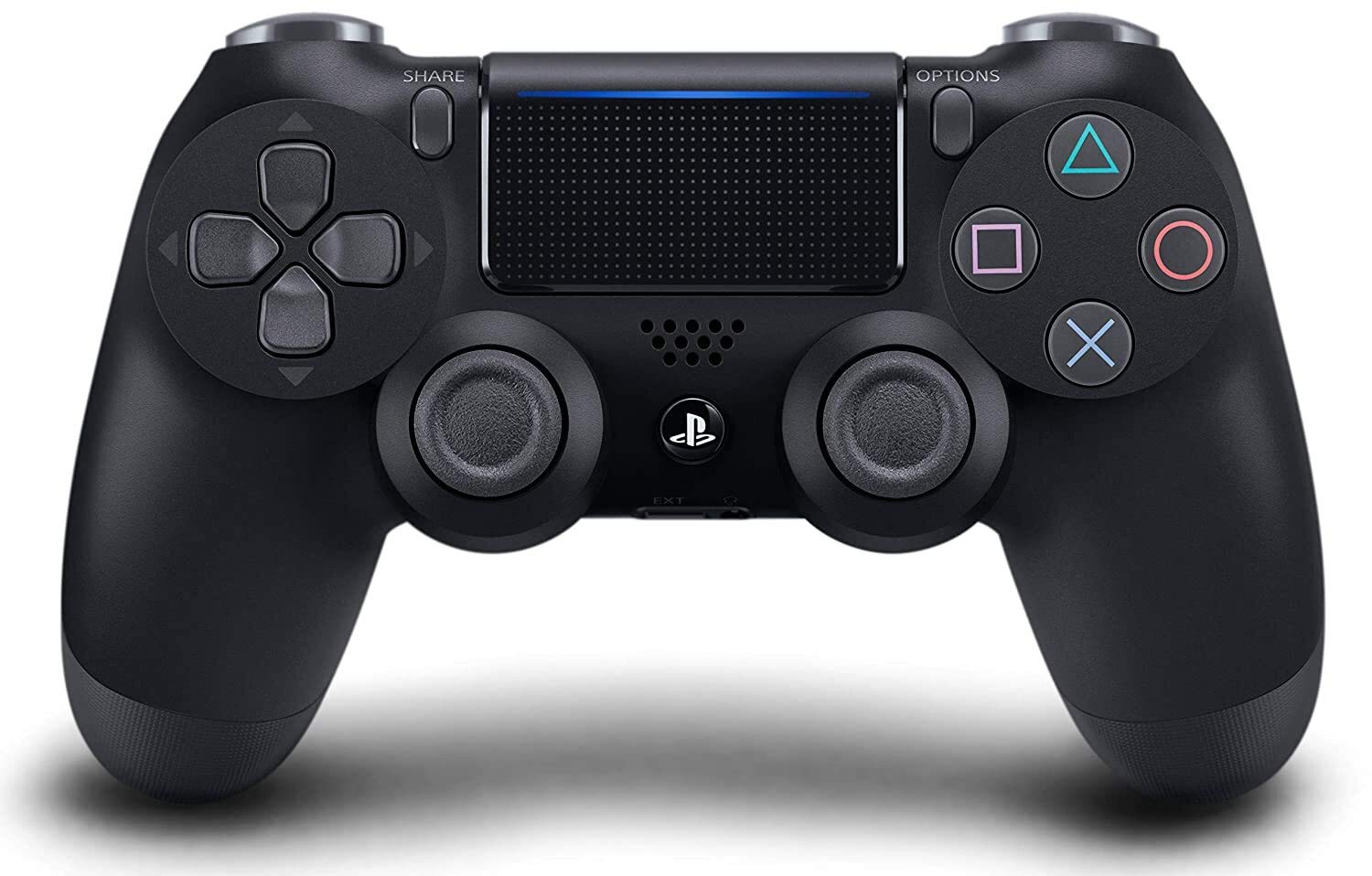
I am thinking of doing a PS4-like controller with a car race on the screen. It would have some audio effects and a trick to win or lose. I want to do it so that 2 people might be able to race at the same time. However, I am not sure how and if I will be able to do it. It seems like a cool idea but I am a little overwhelmed by how it will go. It can either work fine or go the other way around.

Idea 2:

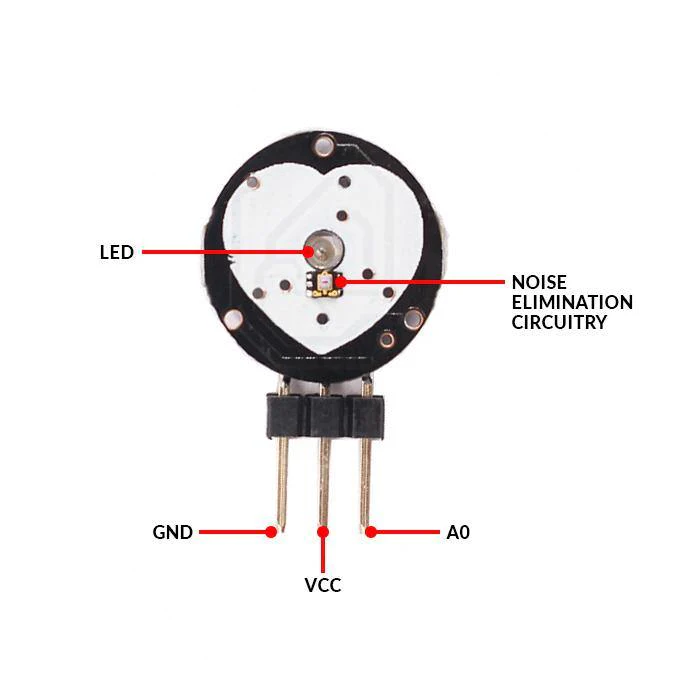
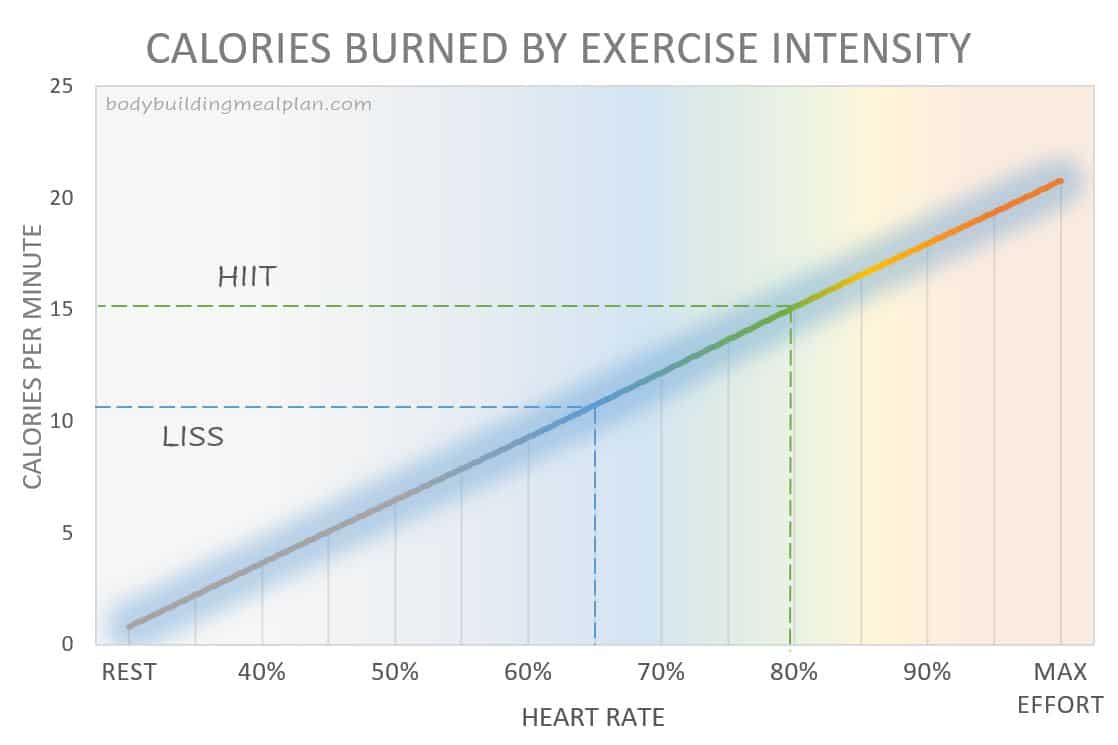
I am thinking of having a screen and a small area where people can run in place but seem as if they are running on a track. Maybe the speed of the person running is controlled by the heart rate. Then maybe I would do some research to see how many calories the person burned at a specific time their weight. It seems an interesting idea. However, it is also challenging and how I visualize it is that it is somehow immersive so that the person only focuses on the running and not what is going on around them.

Ideas 3:

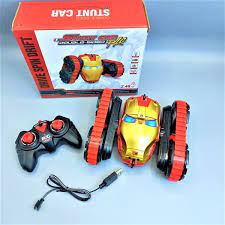
A small physical car and a controller.  I might make a car that moves on a track using a controller similar to kids’ car toys. However, I am trying to think of a twist or a way to make It more engaging. I am not sure until now how to do so.