All Posts

Week 12: Final Project proposal and design documentation

Finalized concept for the project:

I am making a “Crack The Code Safe Game” for my final project. In this game, the user will try to open a locked safe while “guessing the digits from a given hint”.

Game Interface Design:

Design and description of Arduino and P5 program:

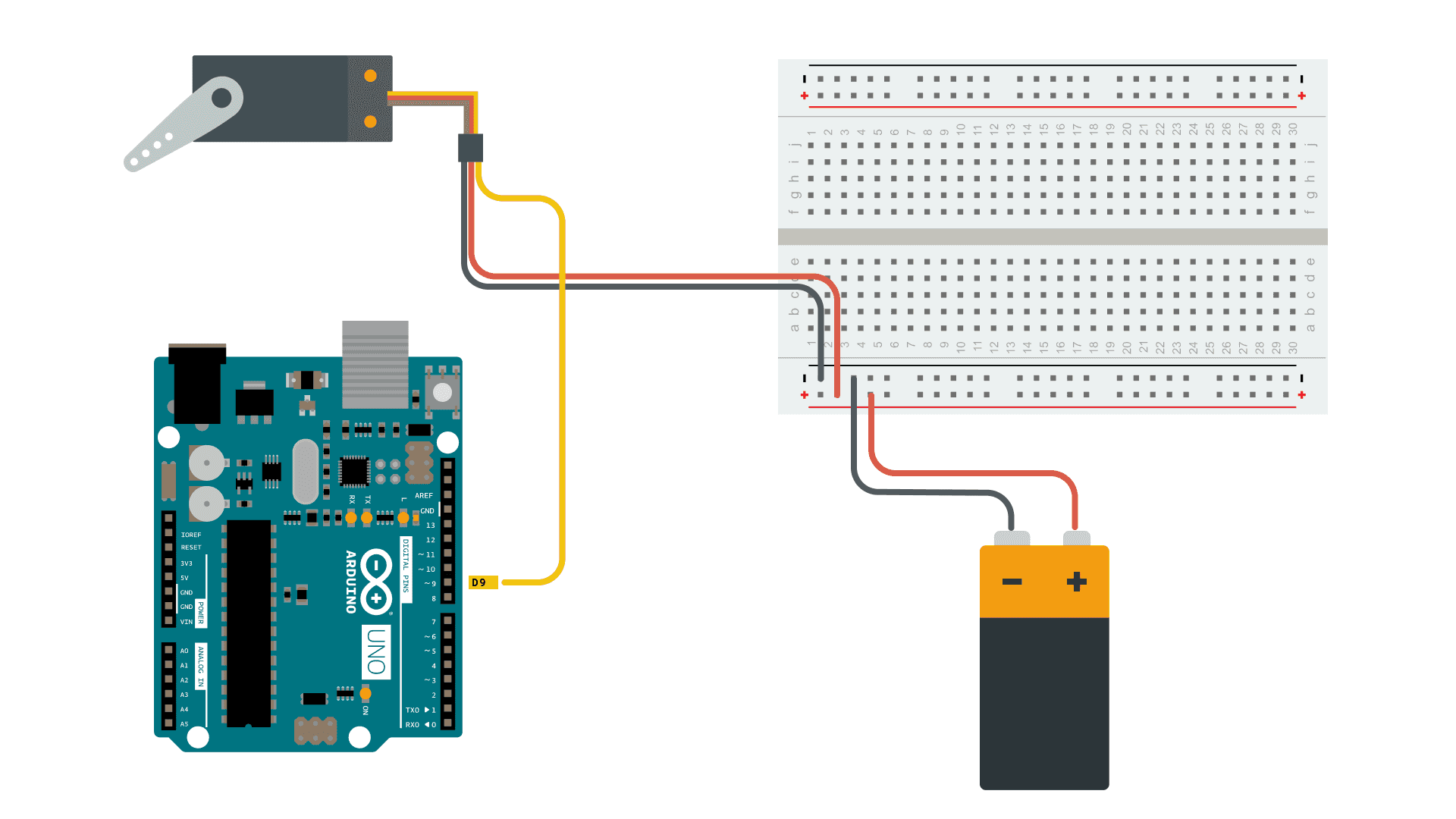
The program will use servo motor to lock and unlock the safe box.

Arduino will receive 3 digits of random code from p5, when the game starts and the servo motor locks the safe box.

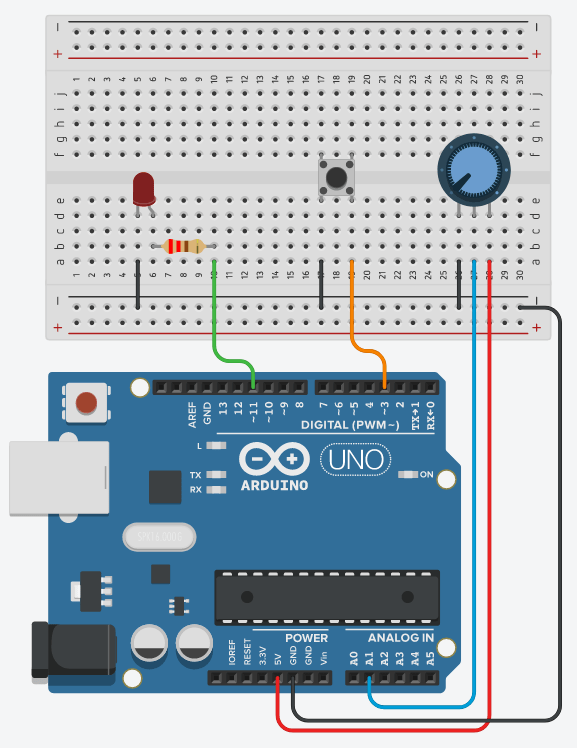
The user is able to enter the digits using potentiometer and button to enter the code for the safe. Turn the potentiometer to choose the digits from 0-9 and press the button to enter the digit. Arduino receives the user input and sends it to p5, which prints the message if the code is wrong or not. If the code is correct the safe opens – servo motor unlocks the safe.


Week 12 – Final Project Idea Proposal, Design & Description

Concept Breakdown:

My idea for the final project will be an interactive glove: a innovative physical way of interacting with the computer. In this glove, we will be able to use certain hand gestures to send input to our Arduino and later on, our computer.  In order to comply with the hardware limitations and time restrictions, I will not utilize the glove as a mouse, as the use of a trackpad will require utilizing a board different than Arduino Uno (For example, the Arduino Micro, Pro Micro or Leonardo).

The Hand Gestures:

The hand gestures utilized will require touching the border of the palm (the other side if we check our knuckles) of our hand with a finger, regardless of which one we decide to use. Try it. Some people will be able to use it with one hand, some people will not. his means we will be able to use either the fingers in the same hand or the other hand. How does this work?

The user will use either one hand or both to control the input, which will be similar to a binary system: 0001. In this case, what we do is utilize the border right under every finger except for the thumb as one of the spaces for the input. This means that touching every part of the palm in different combinations will hold a different output (or input, from the Arduino’s point of view).

This leaves us with 2^4 different combinations that we can map to certain keyboard inputs because remember, a touchpad/mouse-style input requires a different board and honestly, many more inputs.

The Arduino Circuit and Design:

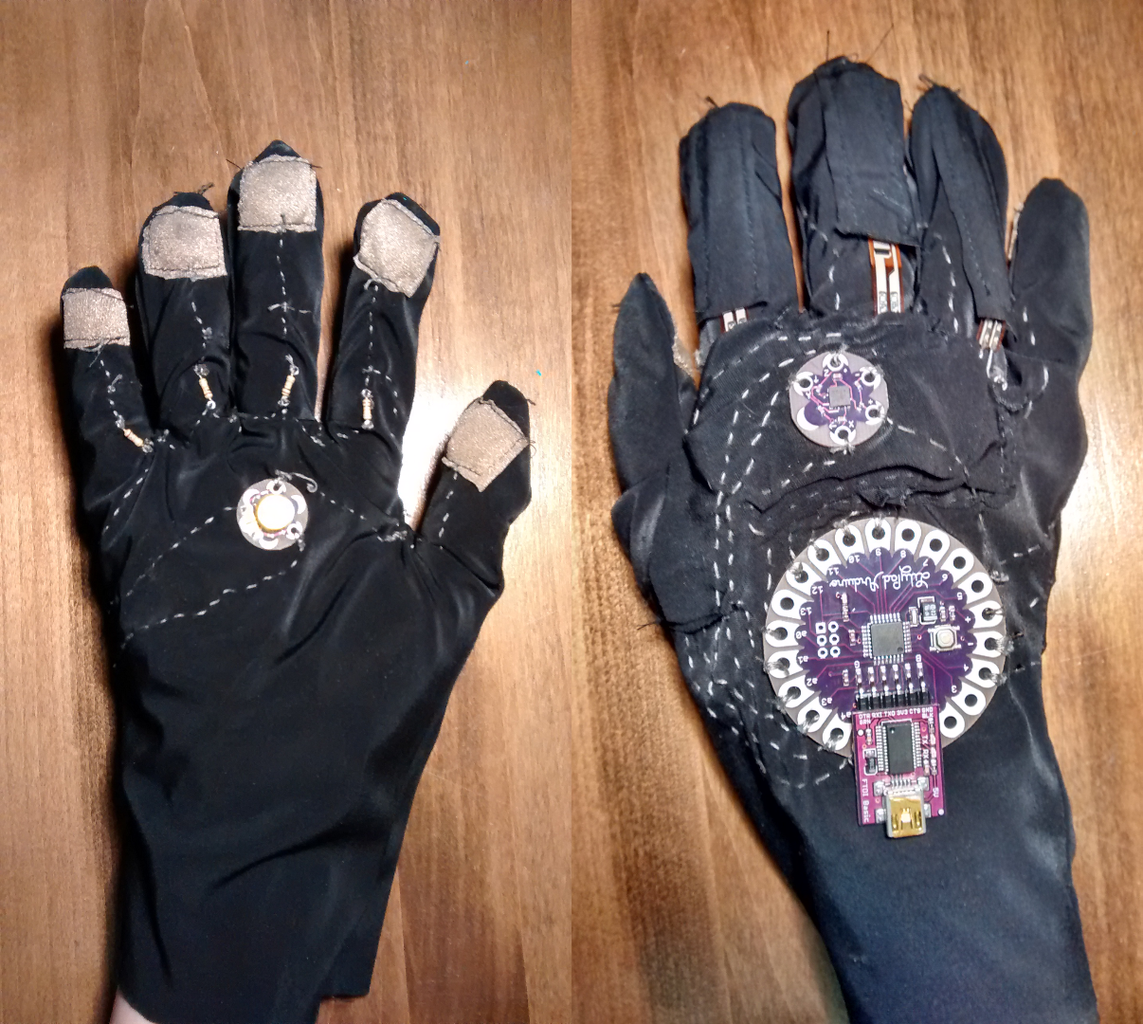
The circuit design is simple but effective. The idea will be to connect cables from the Arduino ports to the border of the palm. By connecting 5v current to all our fingertips, what we will be able to do is effectively create an array of switches that will trigger on our touch. We will attach all the necessary cables to the glove and cover the exterior to avoid disconnections and other problems.  Important to note that we will have to be aware of possible delays and misinputs, as it is a form of physical input.

Interactive Gloves : 8 Steps (with Pictures) - Instructables

The P5js sketch:

The P5js Sketch will be a way of demonstrating the inputs of the glove. We will utilize many of the previous projects we have done, such as the piano, the bouncing ball, the musical instrument and other little games in order to show the public that it is possible to control the input differently.

The Connection:

As much as the communication between p5js and Arduino should be obvious at this point, we will compute the inputs in the circuit before sending a single “key” input to p5js. This means that we have no delay in terms of the computation nor we will need to send more information than necessary. A great addition would be also for p5js to send a response to Arduino. For example, the piano could have its output coming from a speaker.

Week 12 | Final Project Proposal

Finalized Concept:

I really love cars and driving, which is why I’m super excited about creating a car for my final project. My solidified idea is to build a remotely controlled car using p5.js. The main goal is to replicate the experience of driving a manual car by providing complete control through the p5.js sketch.
In this project, I plan to incorporate a webcam, giving users a live video feed in the sketch that mimics a car window. This way, it feels like you’re actually inside the car while controlling it remotely. The sketch will also feature a gear stick, allowing users to adjust the speed as if they are accelerating in a real car.
The cool thing about this project is that it aims to seamlessly bring in a webcam, providing users with a live visual experience on p5.js. This goes beyond physical boundaries, allowing for easy remote control, even if the car is far away. I’m also thinking of adding a distance sensor to enhance safety by alerting users about potential collisions.
Here’s a basic visualization of what the sketch might look like initially:

Arduino Program:

Input:

  1. Distance sensor sending distance values to the P5JS to check for possible collisions.

Output:

  1. Motors rotating wheels based on the received instructions from P5JS.
  2. Leds turning on/off based on the received instructions from P5JS.

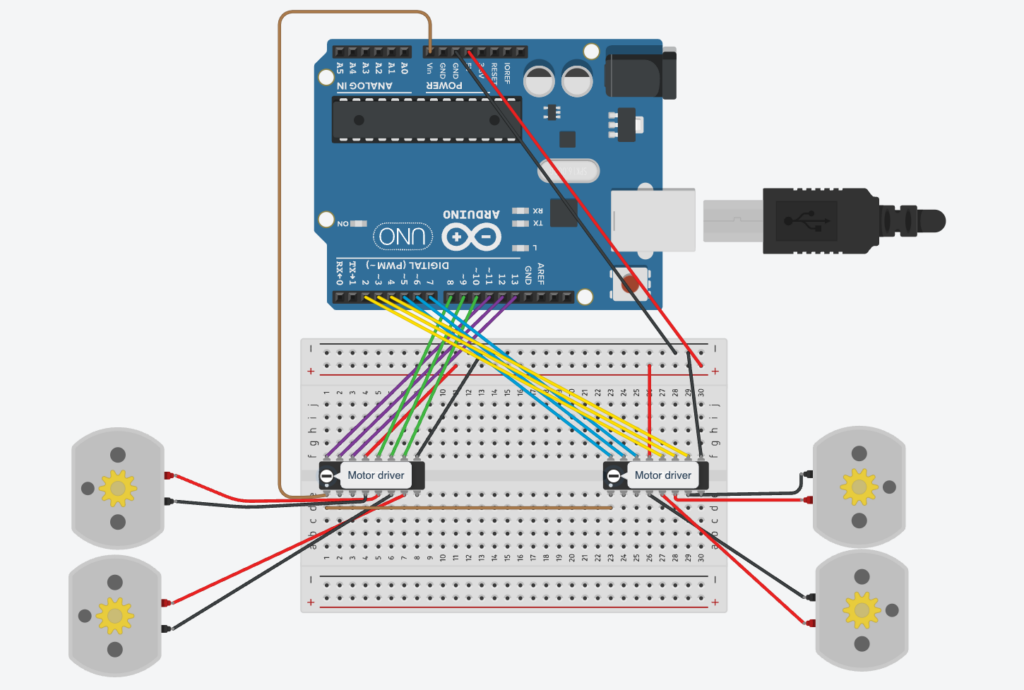
Also, I have designed an initial circuit for controlling the four wheels of the car:

Circuit

P5JS Program:

Input:

  1. Gear value that changes the maximum speed of the car.
  2. Keyboard controls that move the car.

Output:

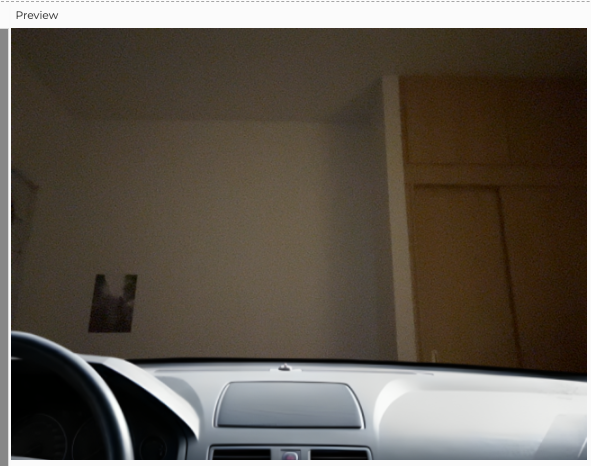
  1. Road view stream of the car displayed using a webcam covered by a car window as shown in the following figure.

    A car in my dorm
  2. Alert triggered when the distance from the car becomes less than a certain threshold.

Perhaps additional elements will be incorporated as I progress through the implementation process.

Week 12 – Final Project Description

FINALIZED CONCEPT

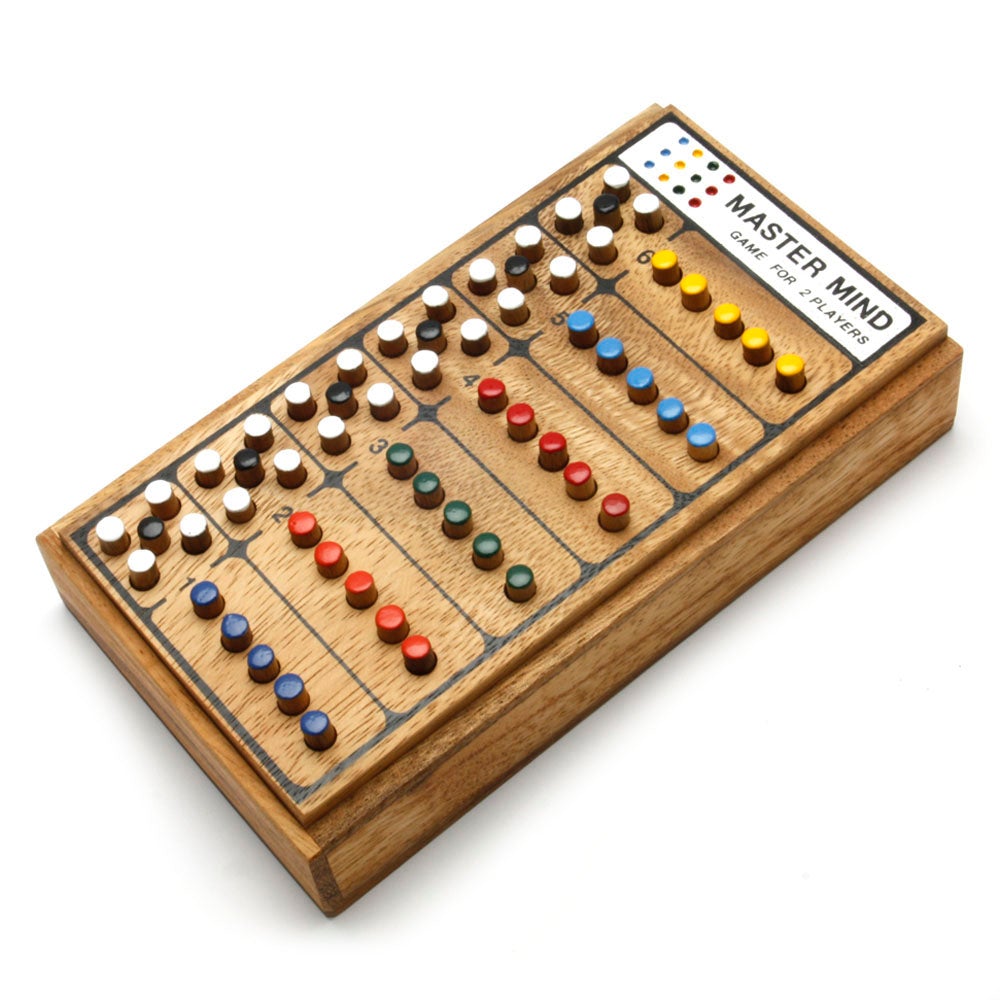
I want to make a Mastermind game, which is a two-player board game where one person is the code maker, and they make a code using colored pegs. The other person is the code breaker, and they have to figure out the code in a limited number of moves. The less moves you take to figure out the code, the higher you score.

Mastermind - Code Breaking Game – Kubiya Games

Mastermind

Originally, I was going to have wooden floats that would complete a circuit through conductive water. However, thinking that would make a mess and potentially be hazardous due to being close to electronics, I switched to using LDRs and LEDs to detect different colors.

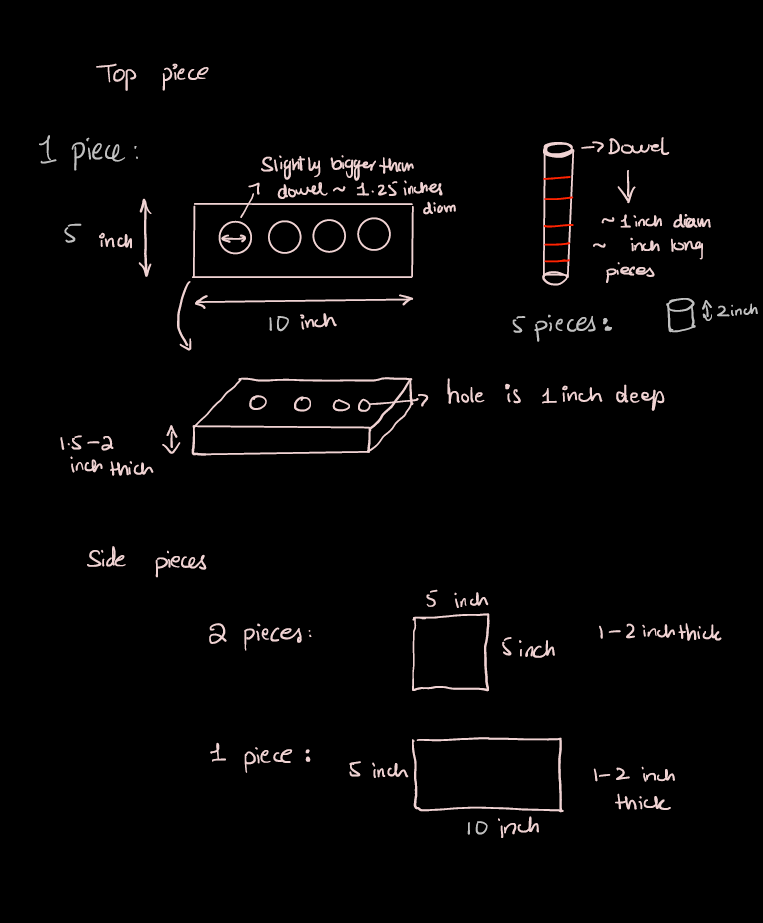
The structure will be made using wood of the following dimensions:

I want it to be an enclosed box, so that the readings on the LDR are stable. My idea is that I can use LEDs of different colors, and different brightnesses to “detect” color, and then use that as input for the Mastermind game built in P5Js.

Arduino to P5Js Communication

The pegs will be the interface of communication, and placing a colored peg into one of the holes should communicate what color the peg is at the respective position. The sensor values that are measured are LDR readings, but I do not want to transmit raw sensor values. Instead, I will do the checks to figure out what color the peg is and in what position within Arduino. Then, I want to transmit the respective color positions to Arduino in the form of a code. There are 4 positions, and 5 colors. So, there are 6 options for each position, including having no peg. Therefore, I will generate a 4-digit code with digits 0-5, and that is what will be sent to P5Js.

Also, I want to add a button that is used to confirm the code selection. To convey that information, I can include a fifth digit in the code, with a 0 or a 1 to represent whether or not the button has been pressed. Any extra checks, like prevent the button from clicking more than once in a certain timeframe, will be processed within P5Js, so that communication is simplified.

P5Js to Arduino

Since my project is centered around an interesting control interface, there is nothing that I want to send from P5Js to Arduino, as the Arduino side is a game controller. Unless there needs to be some sort of syncing that needs to be done, which I don’t expect, there will be no communication back to Arduino from P5Js.

Week 11 Exercises


(Mudi & Mariam)

Exercise 1

In this exercise, a potentiometer connected to an Arduino has been employed to influence the horizontal movement of an ellipse in p5.js. As you turn the potentiometer, the ellipse smoothly moves from side to side.

Exercise 2 :

Controlling the brightness of an LED using a slide bar in p5js
Concept:

The left side of the slide bar (owl) will dim the brightness of the LED and the right side of the slide bar (sun) will make the LED brighter. We used the PWM pin 5 for the LED
a 10 K ohm resistor and two jumper wires to make the connection


Arduino Code:

int redled = 5; //PWM PIN
void setup() {
  pinMode(redled, OUTPUT);
  Serial.begin(9600);
  
  
  // initializing handshake
  while (Serial.available() <= 0) {
    Serial.println("a moment");  
    delay(200);               // wait 1/2 second
  }
}
void loop() {
  // wait for data to load from p5 before continuing code
  while (Serial.available()) {
    int brightness = Serial.parseInt(); 
    if (Serial.read() == '\n') {
      analogWrite(redled, brightness); // turn on LED and adjusts brightness
      Serial.println("ON"); 
    }
  }
}


Design Meets Disability Reading Reflection

Reading this book section, something that catches me is about glasses. Before it never occurred to me that glasses were used instead of worn. They were so common that I forgot they were for disabilities in the eyes. Also, the design for glasses right now focuses more on aesthetics than practicality. It has come to the point that some people wear fake glasses that don’t really do anything because it makes them look better. It is interesting to see how this can be applied to hearing aids or even prosthetics. However, I think this is unlikely to be the case. I believe that this transition from a tool to a fashionable decoration is not replicable for other tools used to address disabilities. Apart from simply being something to fix disabilities, glasses also suggest that the person is smart or knowledgeable because reading a lot makes people’s eyesight decrease. But for other prosthetics or disability aids they do not suggest such meaning. others might even say they are being careless. Therefore subconsciously, people will not think having such things is good, and thus have negative feelings about it no matter how fashionable they are.

As mentioned later, the iPod part also was very interesting. The author used the iPod to demonstrate appliances. However, I think the iPod is just a product that got stuck between sound quality and portability. For the sound quality, the iPod is obviously not even close to as good as other big professional speakers and stuff. For portability, it is just a tiny bit smaller in size compared to that of a cell phone. Therefore I think this product is not successful and cannot be used as an example of a successful appliance. Maybe only mentioning cutlery would be better:)

Final Project Draft 1: Dodge it!

Concept:

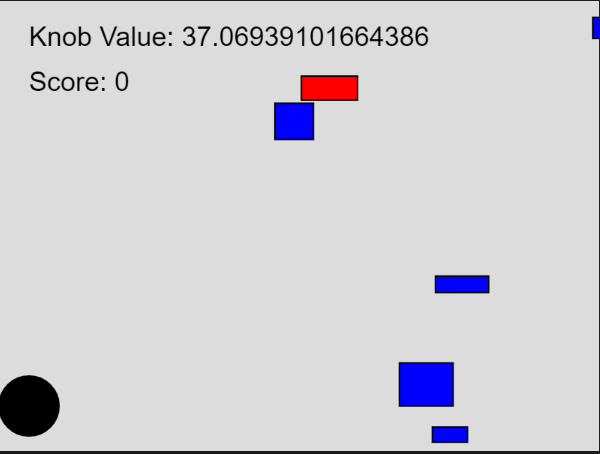
For my final project, I pursued my initial idea and created a game that utilizes the ultrasonic sensor. The ultrasonic sensor will measure the distance from my hand and project that distance onto a ball’s horizontal position in p5. The ball can move left and right according to our hand movement. Multiple red rectangles are falling from above, and our job is to dodge them using our hands. There are also blue rectangles that spawn less frequently compared to the red ones. There is also a scoring system in which the score decreases by one after every frame, and hitting the red rectangles decreases the score by 2. Grabbing the blue rectangles that spawn less frequently is the only way to get a higher score. So the game becomes a fight against time and obstacles. As the score changes, the speaker that is connected to the breadboard also produces a different tone. Each score has its own unique tone produced by the speaker to make the game more engaging and fun. Therefore, this is a 2-way communication game, from p5 to Arduino and Arduino to p5.

Arduino:

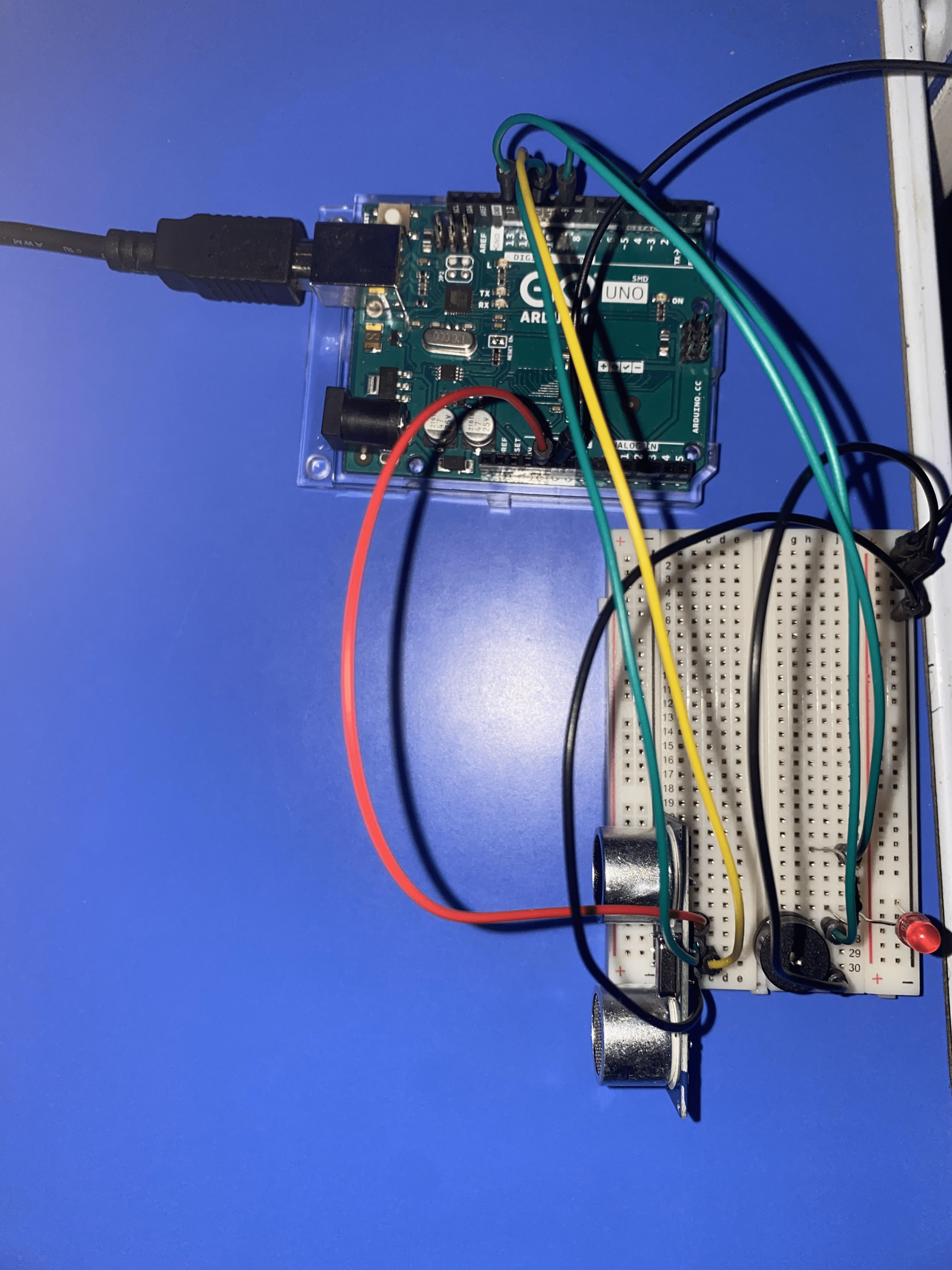
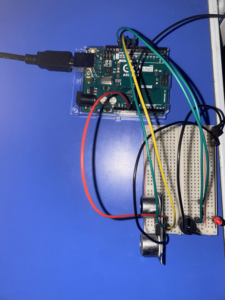
Arduino will basically send the distance measured using the ultrasonic sensor to p5.Js. The Arduino side of the code will receive a score value from the p5. Arduino will input the echo pin(from ultrasonic sensor reading)  and outputs both the trig pin(from ultrasonic) and speaker pin(value received from p5).

Here is my code for it so far:

const int trigPin = 11;
const int echoPin = 12;
const int speakerPin = 9;

void setup() {
  // Start serial communication so we can send data
  // over the USB connection to our p5js sketch
  Serial.begin(9600);
  pinMode(LED_BUILTIN, OUTPUT);

  // Outputs on these pins
  pinMode(trigPin, OUTPUT);
  pinMode(echoPin, INPUT);
  pinMode(speakerPin, OUTPUT);

  //start the handshake
  while (Serial.available() <= 0) {
    digitalWrite(LED_BUILTIN, HIGH); // on/blink while waiting for serial data
    Serial.println("0,0"); // send a starting message
    delay(300);            // wait 1/3 second
    digitalWrite(LED_BUILTIN, LOW);
    delay(50);
  }
}

void loop() {
  // sends a short pulse of ultrasonic sensor and waits a bit then receives it 
  digitalWrite(trigPin, LOW); 
  delayMicroseconds(2); 
  digitalWrite(trigPin, HIGH); 
  delayMicroseconds(10); 
  digitalWrite(trigPin, LOW); 

  // Time it takes for the pulse to travel back from the object long 
  int duration = pulseIn(echoPin, HIGH); 
  // Universal conversion of time into distance in cm 
  int distance = duration * 0.034 / 2;

  //SENDS TO P5
  Serial.println(distance);
  delay(50);

  //GETS FROM P5
  int score = Serial.parseInt();
  // Map the score to a frequency for the speaker
  int frequency = map(score, 0, 100, 100, 4000);
  // Play the tone
  tone(speakerPin, frequency);
}

The Arduino board:
p5:

For the p5 side of the code, the p5 will receive the distance value measured from Arduino and map it onto the canvas. The p5 will also send a live score value to Arduino. There are multiple classes to my p5 code: ball class, Obstacle class, TimeRectangle class, a class for the port connection, and finally the main sketch.

This is my attached main sketch class:

//Initialize all variables
let knobValue = 0;
let targetKnobValue = 0;
let easing = 0.08; // Adjust this value for the desired level of smoothing
let score = 0;
let lastFrameCount;

//initialize the class objets
let obstacles = [];
let timeRectangles = [];
let ball;


function setup()
{
  createCanvas(400, 300);
  //call the ball object
  ball = new Ball(width / 2, height - 30, 20);
  //line of code to set lastframe to the new one
  lastFrameCount = frameCount;
}

function draw() {
  //set background
  background(220);

  //if function to connect port 
  if (!serialActive)
  {
    fill(0);
    textSize(18);
    text("Press Space Bar to select Serial Port", 20, 30);
  } 
  //else function if the port is connected
  else 
  {
    // lerp function linear interpolates(smoothes the value we get from arduino using distance sensor)
    knobValue = lerp(knobValue, targetKnobValue, easing);
    //updates ball position according to distance sens
    ball.update(knobValue);

    // Draw ball
    ball.show();

    // Draw and move obstacles
    for (let i = obstacles.length - 1; i >= 0; i--) {
      obstacles[i].update();
      obstacles[i].show();

      // Remove obstacles that are off-screen
      if (obstacles[i].offscreen()) {
        obstacles.splice(i, 1);
      } else {
        // Check for collision with the ball
        if (obstacles[i].collision(ball)) {
          // Handle collision (e.g., decrease score)
          score= score-2;
          obstacles.splice(i, 1); // Remove the obstacle
        }
      }
    }

    // Draw and move timeRectangles(blue ones)
    for (let i = timeRectangles.length - 1; i >= 0; i--) {
      timeRectangles[i].update();
      timeRectangles[i].show();

      // Remove timeRectangles that are off-screen
      if (timeRectangles[i].offscreen()) {
        timeRectangles.splice(i, 1);
      } else {
        // Check for collision with the ball
        if (timeRectangles[i].collision(ball)) {
          // Handle collision (e.g., increase score)
          score += 5;
          timeRectangles.splice(i, 1); // Remove the timeRectangle
        }
      }
    }

    // Print the current knobValue
    fill(0);
    textSize(18);
    text('Knob Value: ' + str(knobValue), 20, 30);

    // Display score
    text("Score: " + score, 20, 60);

    // Spawn new obstacles and timeRectangles randomly
    if (random() < 0.01) {
      obstacles.push(new Obstacle());
    }
    if (random() < 0.005) {
      timeRectangles.push(new TimeRectangle());
    }
    
       // Update the score every second by subtracting current frame with last frame recorded in setup
    if (frameCount - lastFrameCount >= 60) {
      score = max(0, score - 1);
      lastFrameCount = frameCount;
    }
    
  }
}

function keyPressed() {
  if (key == " ") {
    // important to have in order to start the serial connection!!
    setUpSerial();
  }
}

function readSerial(data) {
  ////////////////////////////////////
  // READ FROM ARDUINO HERE
  ////////////////////////////////////

  if (data != null) {
    // Parse the data received from Arduino
    let fromArduino = split(trim(data), ",");
    targetKnobValue = int(fromArduino[0]);
    print(targetKnobValue);
  }

  //////////////////////////////////
  // SEND TO ARDUINO HERE
  //////////////////////////////////
  let sendToArduino= score + "\n";
   writeSerial(sendToArduino);
}

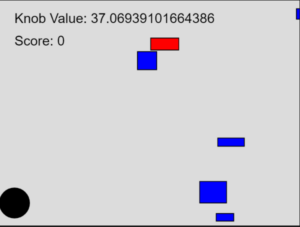
The P5 interface:
Future improvements:

As of now, I just put down the main codes and functions for both platforms. I will have to work more on the visuals, designs, and aethstics side as a whole of the p5 game.


Week 11 – Exercises

  1. I used a photoresistor as input to control the position of the sphere.

p5js:

let xcord = 0;
let left=0;
let right=0;

function setup() {
  createCanvas(640, 480);
}

function draw() {
  background("white");
  
  if (!serialActive) {
    text("Press Space Bar to select Serial Port", 20, 30);
  } else {
    text("Connected", 20, 30);

    ellipse(xcord,height/2,100,100);
    console.log(xcord);

  }

}

function keyPressed() {
  if (key == " ") {
    // important to have in order to start the serial connection!!
    setUpSerial();
  }
}

function readSerial(data) {


  if (data != null) {

    let fromArduino = trim(data);

    xcord = int(fromArduino);
    
  }
}

Arduino:

int inPin = A0;

void setup() {
  // Start serial communication so we can send data
  // over the USB connection to our p5js sketch
  Serial.begin(9600);

  pinMode(LED_BUILTIN, OUTPUT);
  pinMode(inPin, INPUT);
}

void loop() {

  digitalWrite(LED_BUILTIN, HIGH);  // led on while receiving data


  int sensor = analogRead(A0);
  delay(5);
  Serial.println(sensor - 300);

  digitalWrite(LED_BUILTIN, LOW);
}

2.

p5js:

let ycord;

function setup() {
  createCanvas(640, 480);
  textSize(18);
}

function draw() {

  if (!serialActive) {
    text("Press Space Bar to select Serial Port", 20, 30);
  } else {
    text("Connected", 20, 30);

  }

  if (mouseIsPressed) {
    ycord=mouseY;
    console.log(ycord);
  }
}

function keyPressed() {
  if (key == " ") {
    // important to have in order to start the serial connection!!
    setUpSerial();
  }
}

function readSerial(data) {

  if (data != null) {
    let fromArduino = trim(data);
                     
    let sendToArduino = ycord + "\n";
    writeSerial(sendToArduino);
    console.log("sent");
  }

}

Arduino:

int inPin = A0;
int outpin = 8;

void setup() {
  // Start serial communication so we can send data
  // over the USB connection to our p5js sketch
  Serial.begin(9600);

  pinMode(LED_BUILTIN, OUTPUT);
  pinMode(inPin, INPUT);
  pinMode(outpin, INPUT);
}

void loop() {

  digitalWrite(LED_BUILTIN, HIGH);  // led on while receiving data

  int brightness = Serial.parseInt();
  if (Serial.read() == '\n') {
    digitalWrite(outpin, HIGH);
    delay(brightness/100);

    digitalWrite(outpin, LOW);
    delay(4.80-brightness/100);
  }
  Serial.println(brightness);
}

3. It works but the lag is insane.

Arduino:

int inPin = A0;
int outpin = 8;

void setup() {
  // Start serial communication so we can send data
  // over the USB connection to our p5js sketch
  Serial.begin(9600);

  pinMode(LED_BUILTIN, OUTPUT);
  pinMode(inPin, INPUT);
  pinMode(outpin, INPUT);
}

void loop() {
  digitalWrite(LED_BUILTIN, LOW);

  while (Serial.available()) {
    // led on while receiving data
    digitalWrite(LED_BUILTIN, HIGH);
    int left = Serial.parseInt();
    if (Serial.read() == '\n') {

      int sensor = analogRead(A0);
      Serial.println(sensor);
    }
    if (left >= 350 && left <= 360) {
      digitalWrite(outpin, HIGH);
    } else {
      digitalWrite(outpin, LOW);
    }
  }
  int sensor = analogRead(A0);
  Serial.println(sensor);
}

P5:

let velocity;
let gravity;
let position;
let acceleration;
let wind;
let drag = 0.99;
let mass = 50;

function setup() {
  createCanvas(640, 360);
  noFill();
  position = createVector(width/2, 0);
  velocity = createVector(0,0);
  acceleration = createVector(0,0);
  gravity = createVector(0, 0.1*mass);
  wind = createVector(0,0);
}

function draw() {

  background(255);
  applyForce(wind);
  applyForce(gravity);
  velocity.add(acceleration);
  velocity.mult(drag);
  position.add(velocity);
  acceleration.mult(0);
  ellipse(position.x,position.y,mass,mass);
  if (position.y > height-mass/2) {
      velocity.y *= -0.9;  // A little dampening when hitting the bottom
      position.y = height-mass/2;
    }
}

function readSerial(data) {
    ////////////////////////////////////
    //READ FROM ARDUINO HERE
    ////////////////////////////////////
  
    if (data != null) {
    // make sure there is actually a message
    
    let fromArduino = trim(data);
   
    //console.log(fromArduino);
    let sensorVal = int(fromArduino);
      
    if (sensorVal < 600){
      wind.x=1;
    }
    else if(sensorVal >= 600 && sensorVal < 800){
      wind.x = 0;
    }

    else {
      wind.x = -1;
    }
//           //////////////////////////////////
//           //SEND TO ARDUINO HERE (handshake)
//           //////////////////////////////////
  }
  else{
    console.log("empty input");
  }
//height of ball sent to arduino to check if ball on floor or not
  let sendToArduino = position.y + 0.5 * mass + "\n";
  writeSerial(sendToArduino);

}

function applyForce(force){
  // Newton's 2nd law: F = M * A
  // or A = F / M
  let f = p5.Vector.div(force, mass);
  acceleration.add(f);
}

function keyPressed(){
  if (keyCode==LEFT_ARROW){
    wind.x=-1;
  }
  if (keyCode==RIGHT_ARROW){
    wind.x=1;
  }
  // if (key==' '){
  //   mass=random(15,80);
  //   position.y=-mass;
  //   velocity.mult(0);
  // }
  if (key == " ") {
    if (!serialActive) {
      setUpSerial();
      console.log("serial")
    }
    mass=random(15,80);
    position.y=-mass;
    velocity.mult(0);
  }
}


Week 11 Reading reflection

While going through the text, a specific passage that took my attention is the discussion about hearing aids. Unlike glasses, whose design has undergone comparatively less change, the writer highlights the evolving nature of hearing aids, emphasizing not only the modifications in their appearance but also the constant transformation of their discreet placement.

And in the part where, ‘Simple meets universal’, the author explores the complexities of designing for special needs, especially when dealing with a minority of the population. On one hand, there is a compelling business argument against further fragmenting the market by tailoring designs for small percentages of users. The concern here is that such a specialized approach might limit the product’s reach and economic viability.

Conversely, the concept of inclusive design, also known as universal design, introduces a principle-based contention. Inclusive design, by definition, aims to cater to the entire population. This definition intertwines two critical aspects: the acknowledgment that individuals possess varying abilities, and a recognition that people may have diverse needs and preferences regardless of their abilities. The former is commonly addressed through multimodal interfaces, incorporating visual, audible, and tactile cues to accommodate those with impaired touch, hearing, and/or sight. Meanwhile, the latter is often managed through multifunctional platforms, incorporating numerous features to appeal to a broad range of users.

A central question raised by the author is whether the pursuit of universal design, aiming to accommodate a diverse user base, might inadvertently lead to overly complex designs. There is a tension between the goal of inclusivity and the risk of creating designs that are intricate and potentially challenging to use. This prompts a consideration of how truly inclusive such designs are, and whether there are insights to be gained from navigating these design complexities.